Note: If your organization is managing students and has added them, you do not need to add students from your parent account.
Add students by clicking the Add Students button in the My Students box.
.png)
Click Add Student when completed.
Select whether you would like your student to see grades, work ahead, or see timers.
Next, follow the prompt to add courses to your student’s account.
Add profile picture if desired.
Create a username and password for your student.
Begin by adding your student’s name and grade level. Add birthdate and gender (optional).
Learning Settings
The Learning Settings box is located below the My Students box.
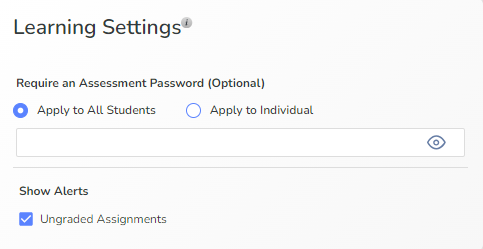
Check or Uncheck Ungraded Assignments to enable or disable alerts about ungraded assignments that are past due.
Type a password, which will autosave. Click the eye icon to show or hide the password.
Set a test password for your student if desired. Select if you would like to apply the test password to a specific student or to all students.
Time Tracking
You may choose to let the Class Connect or the Homeschool Hub automatically assign 40 minutes of lesson time for every lesson marked complete, or you may choose to track time manually. With manual time tracking, you or your student may log an amount of time on each lesson completed. You can also edit the Expected Time to Complete on each assignment when you edit an assignment.