Click the Start Test or Start Quiz button next to an assessment to begin. For an Online Activity you can click Start Task. You will receive instructions and then click Start to begin. If your parent has set up an Assessment password, they may need to input that before you can get started.
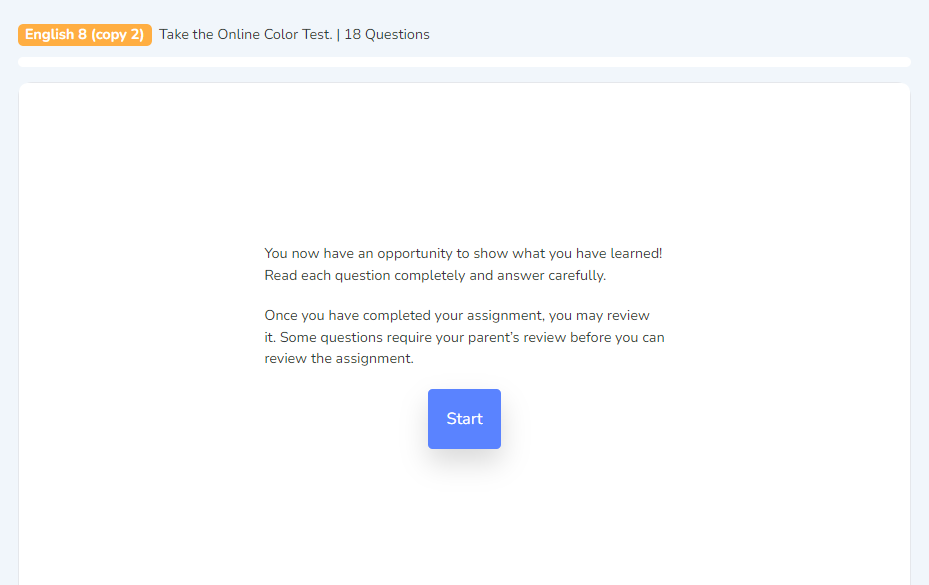
Once you click Start, the assignment begins, and all other areas of the Hub are locked until you complete it.
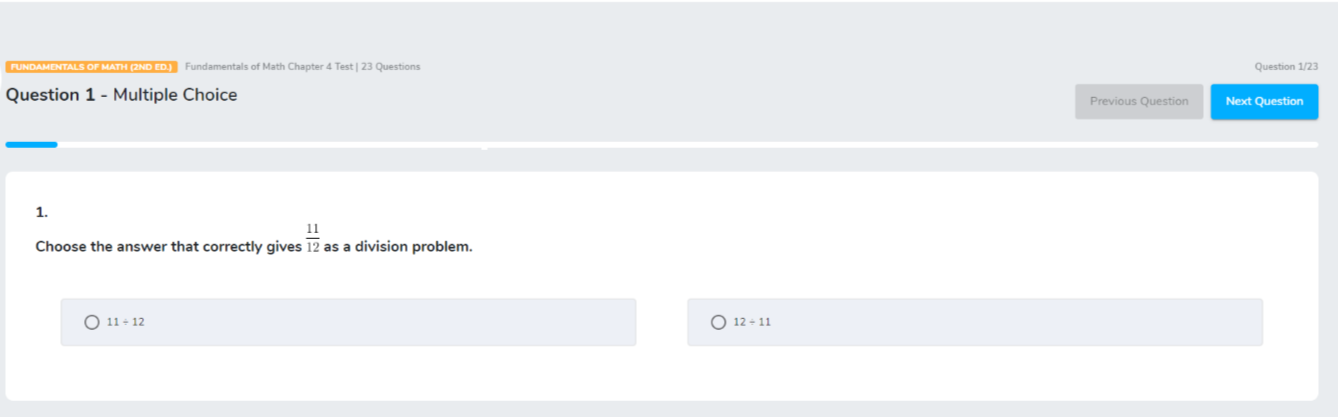
The timer starts when you begin the assessment. This setting may be turned off in the parent account.
The number of questions is visible here. Go to Previous or Next Question here.
There are several different question types that make up an online test, quiz, or activity.
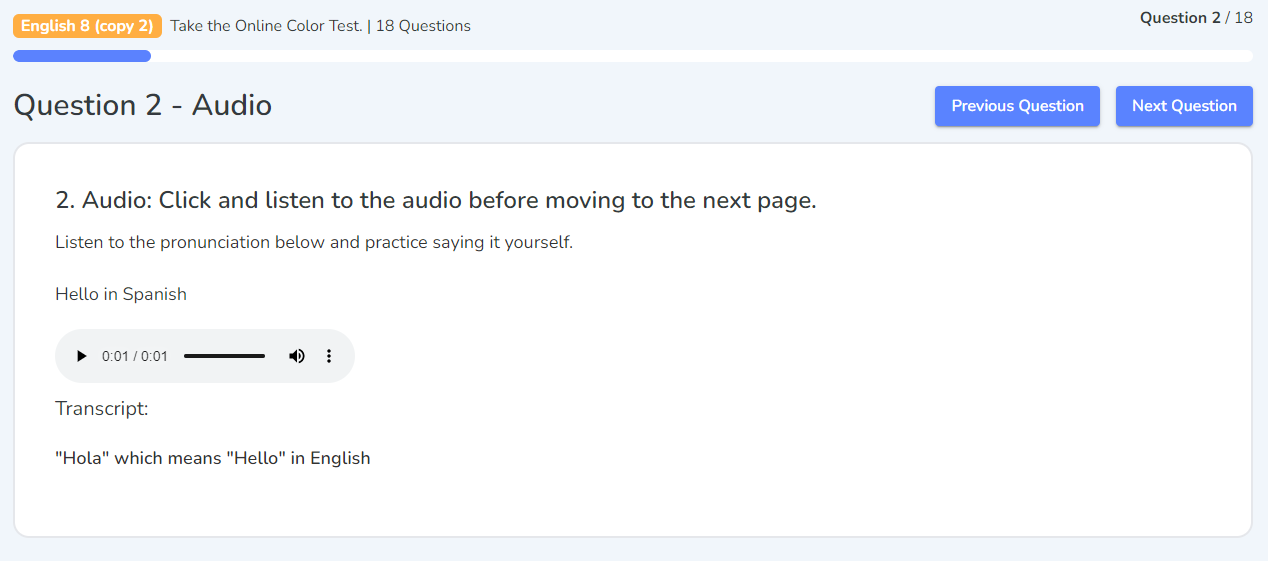
Some question types will provide and teach you new information. These will not have places to input answers and will mostly be used on online activities instead of tests or quizzes.
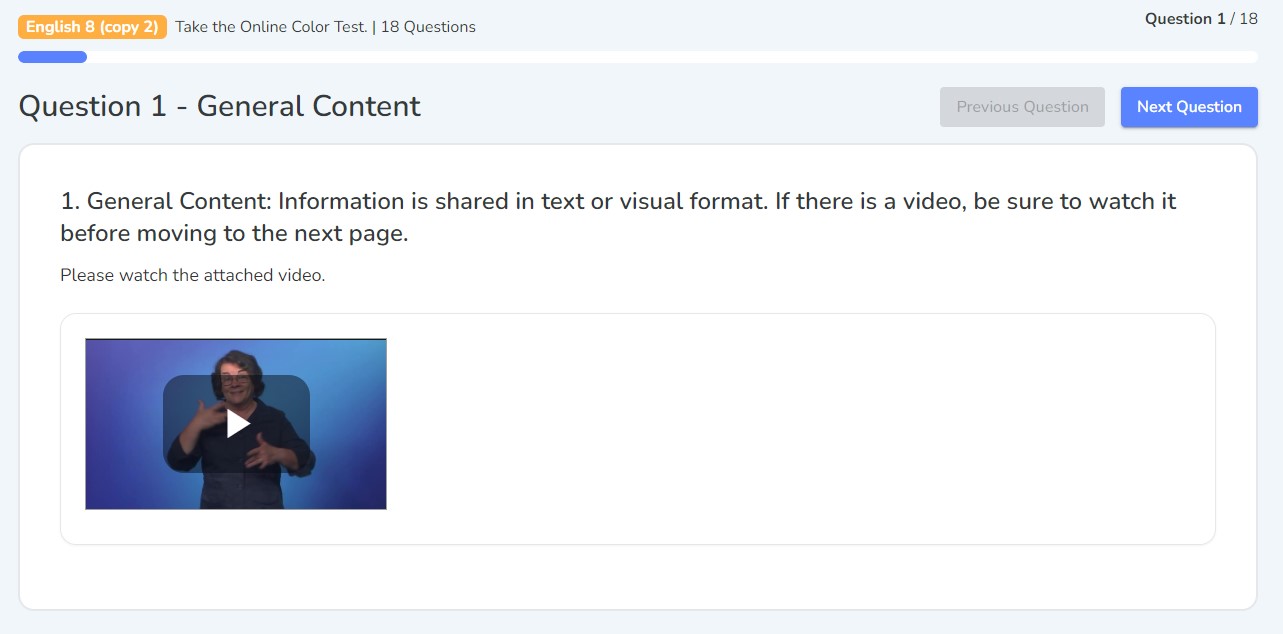
General Content
Audio
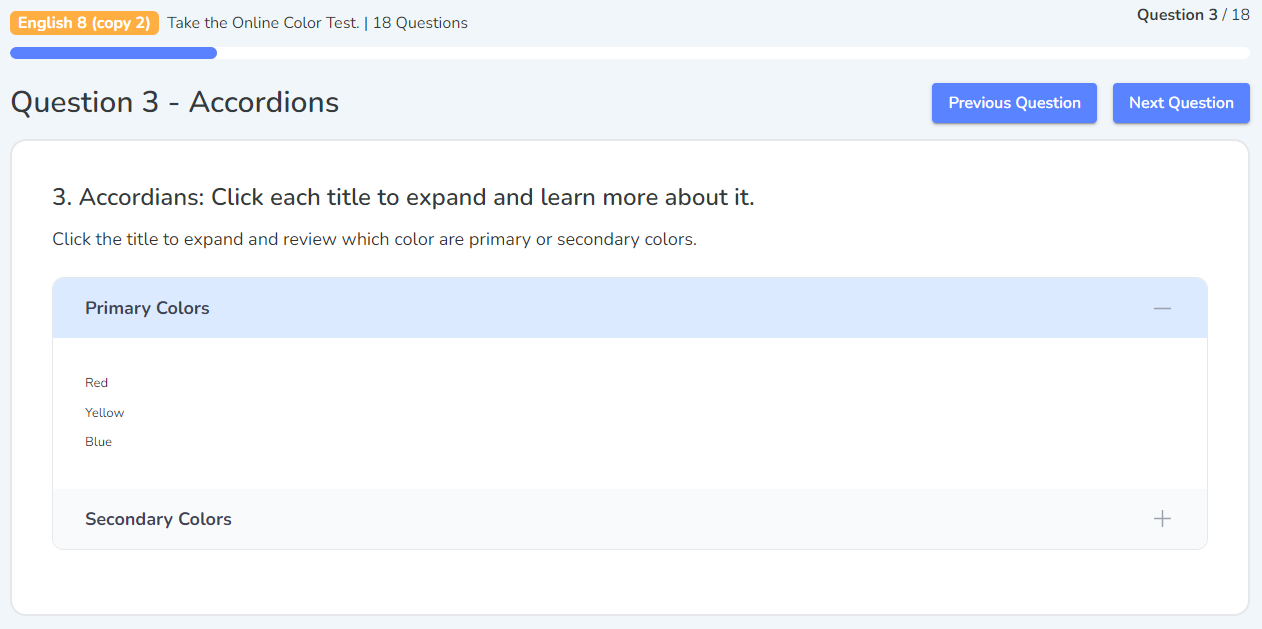
Accordions
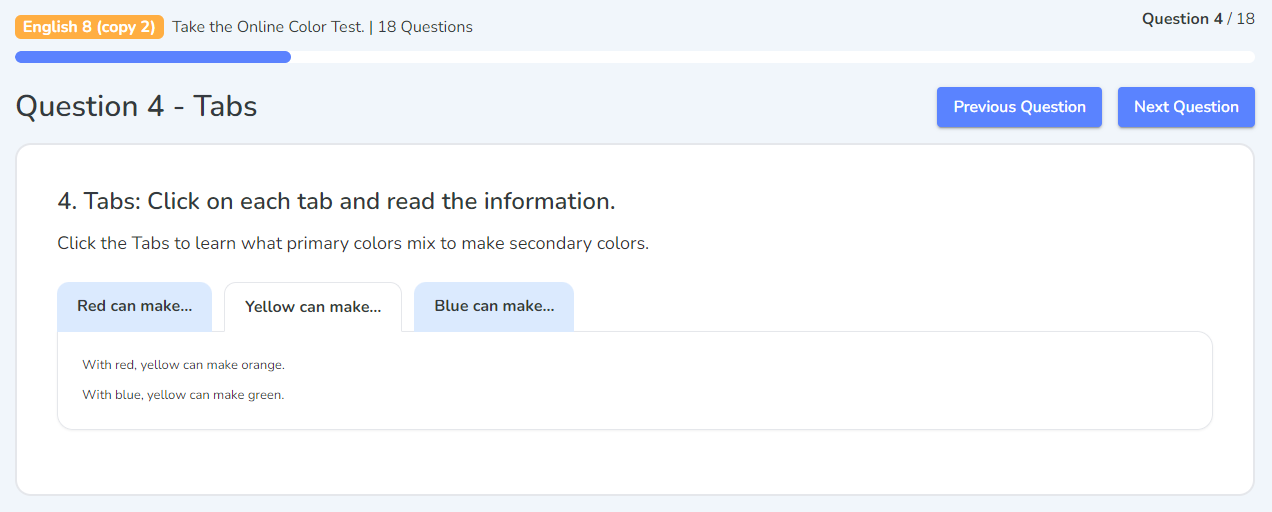
Tabs
Hot Spot Image
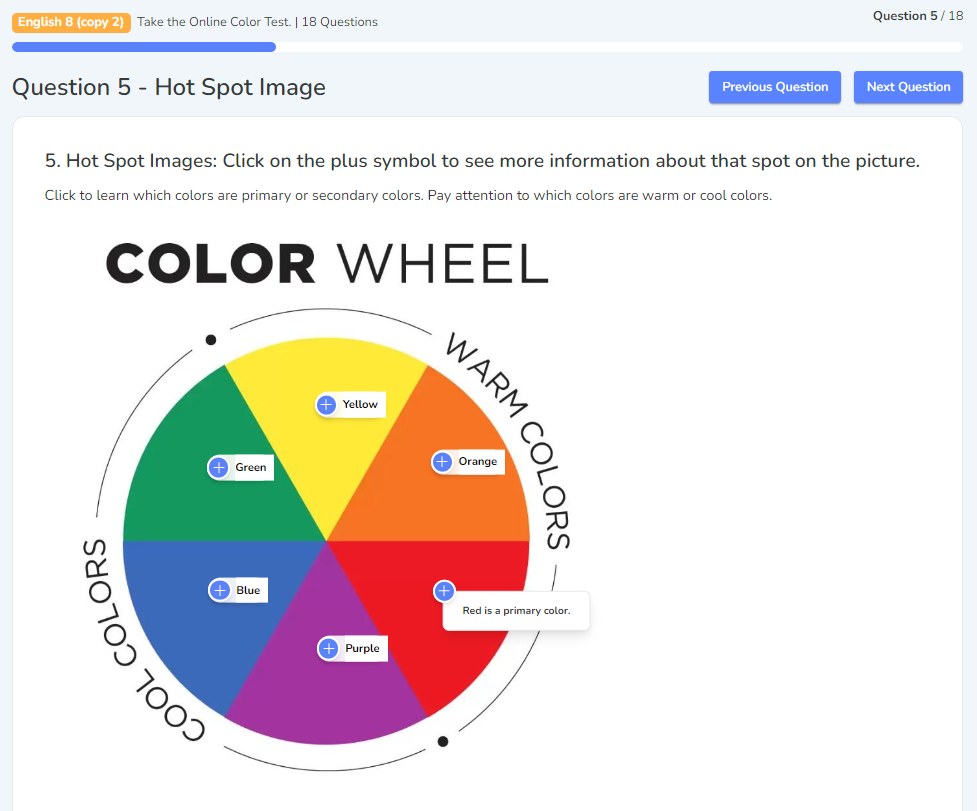
You can click on the Hot Spots to see the full content one at a time.
The rest of the question types will assess your recall of information. Most of these will be automatically graded once submitted.
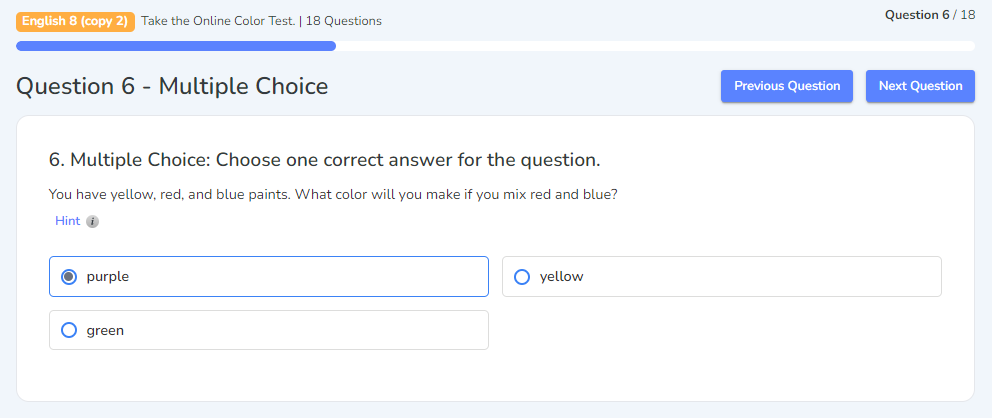
Multiple Choice
Multiple Answer
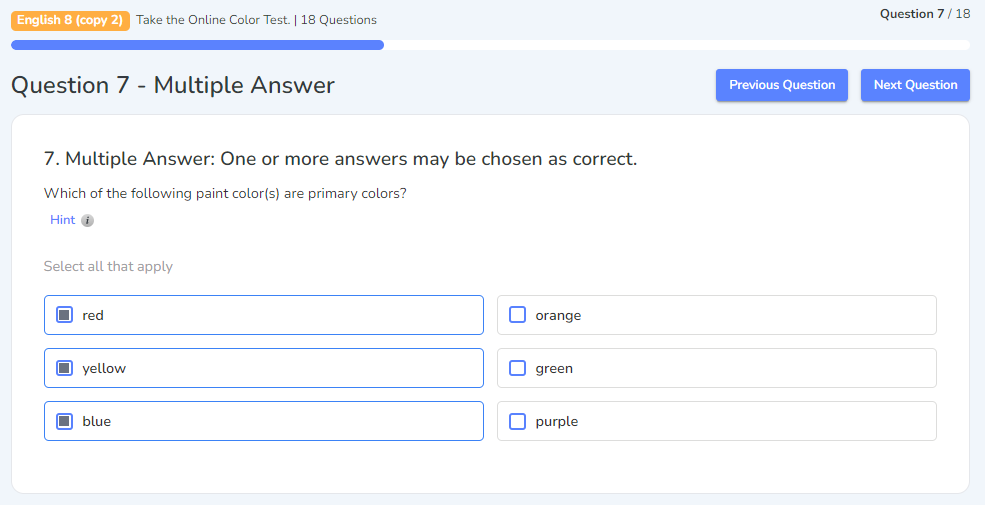
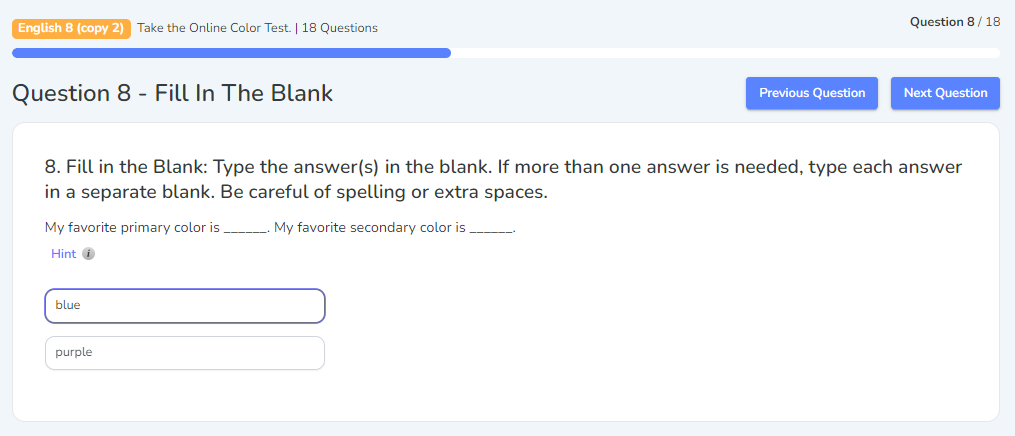
Fill In The Blank
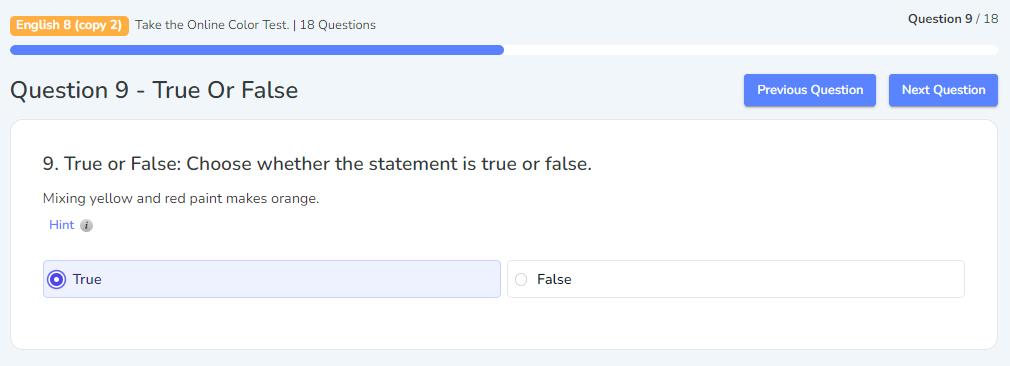
True Or False
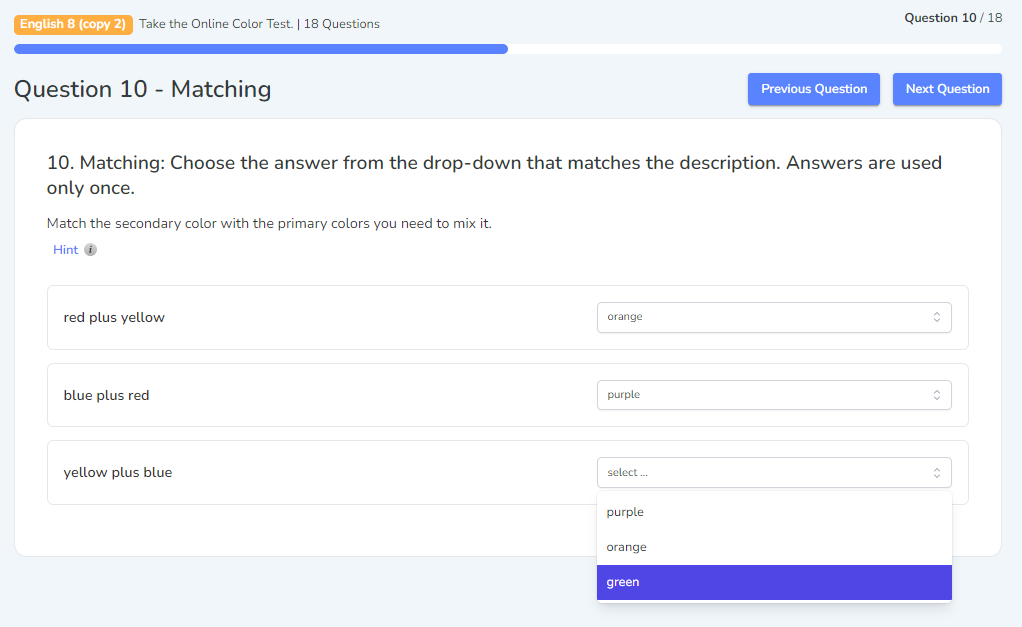
Matching
Matching Drag And Drop
Before
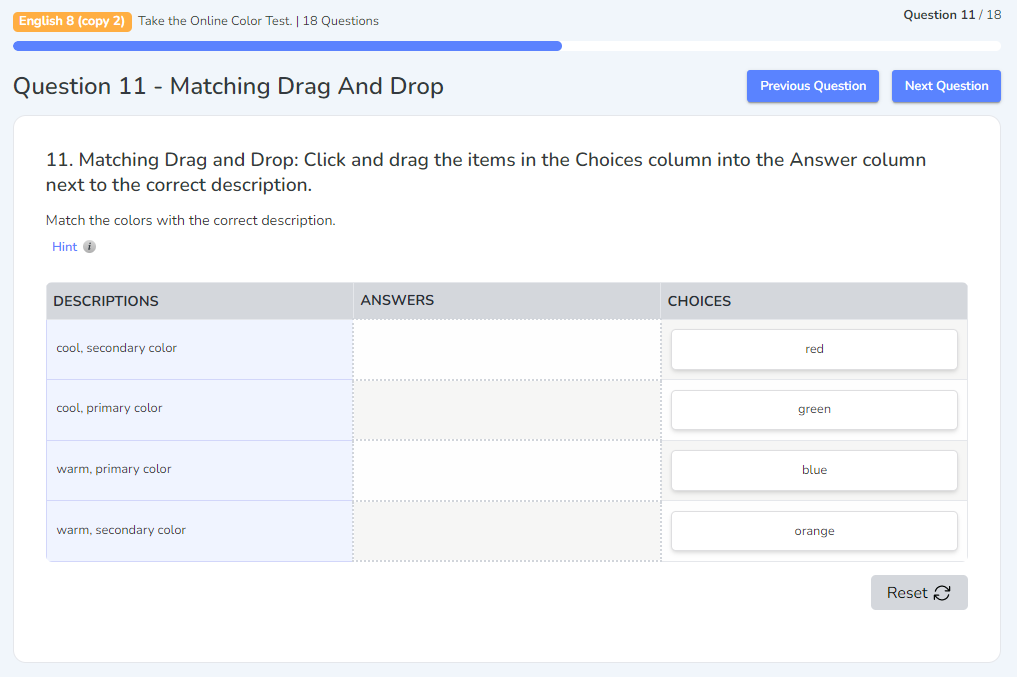
After
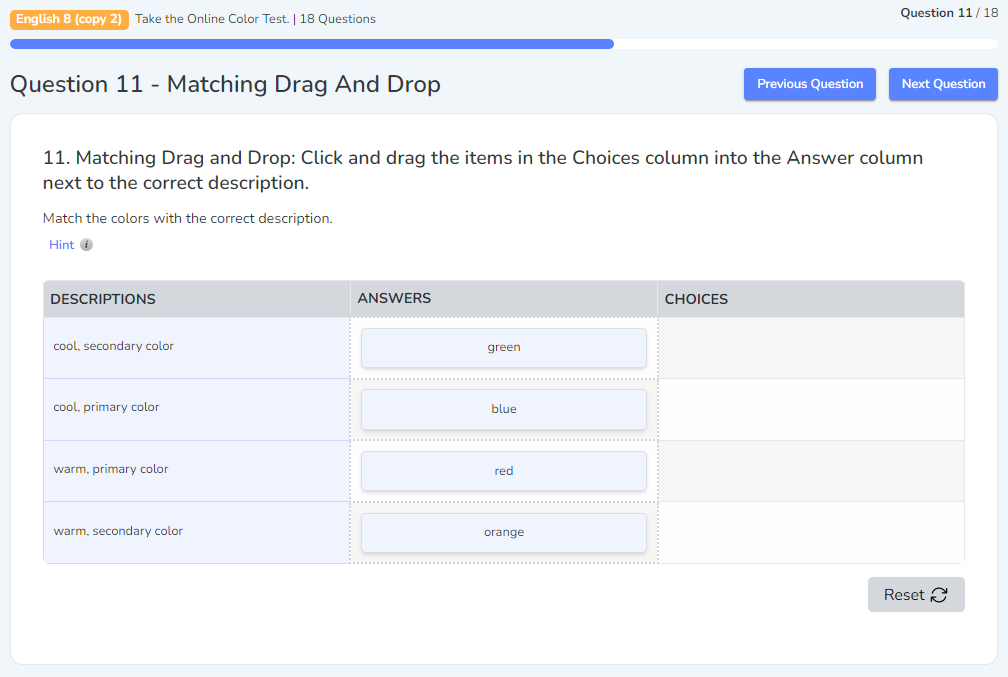
If you need to reset the answer options in the Choices column, you can click on Reset.
Matching Drag And Drop With Pictures
Before
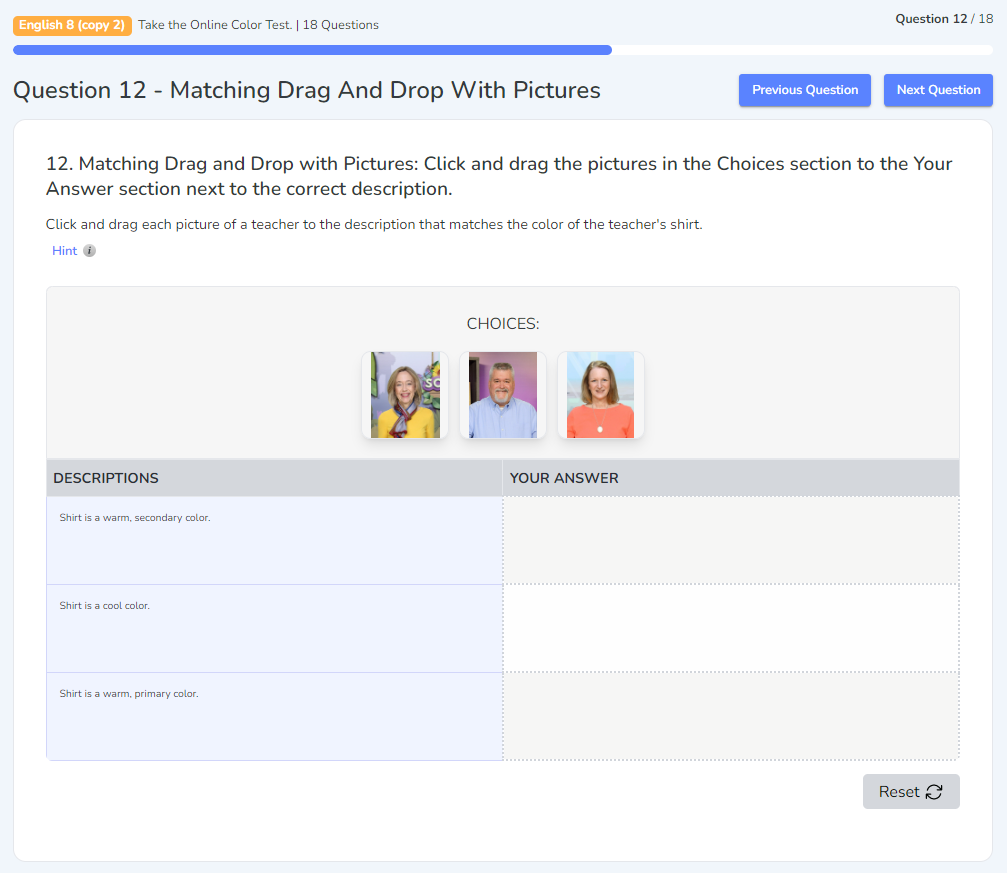
After
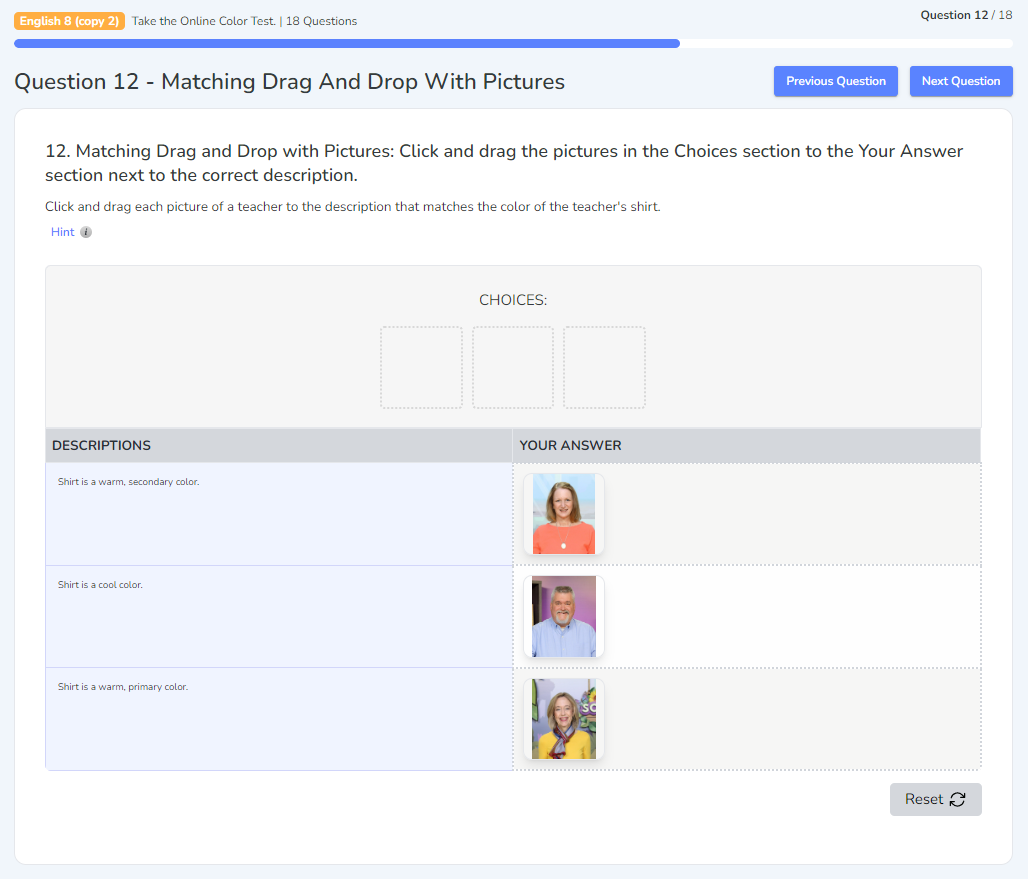
Click To Highlight Word
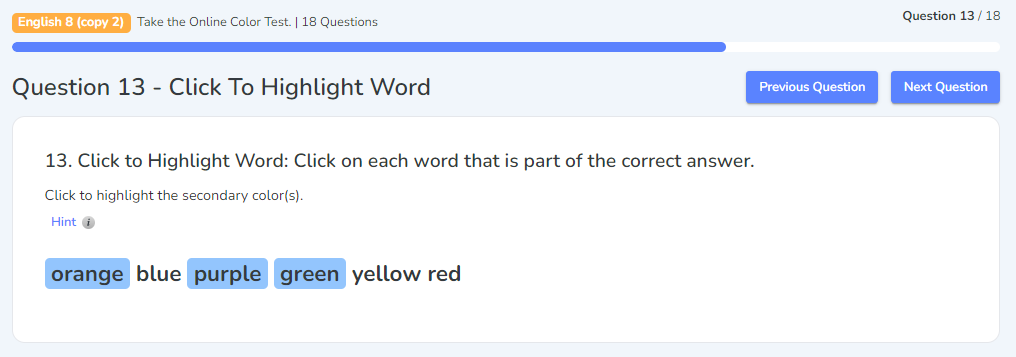
Highlight Categories
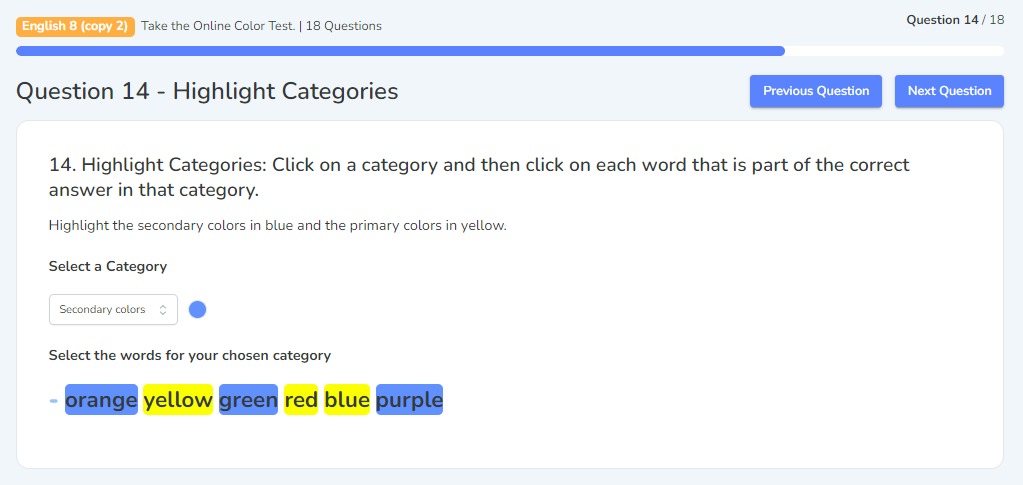
Each category will have a certain color assigned. Click the drop-down menu to switch between the categories. You may not use every category on some questions.
Categorization
Before
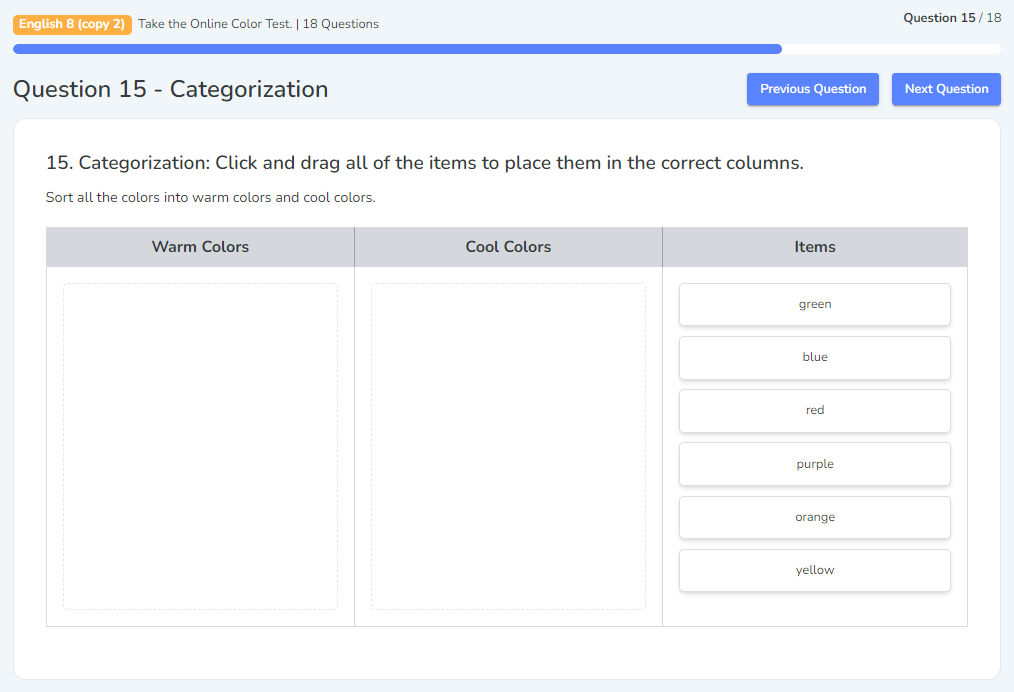
Click and drag choices from the Items column to the correct column.
After
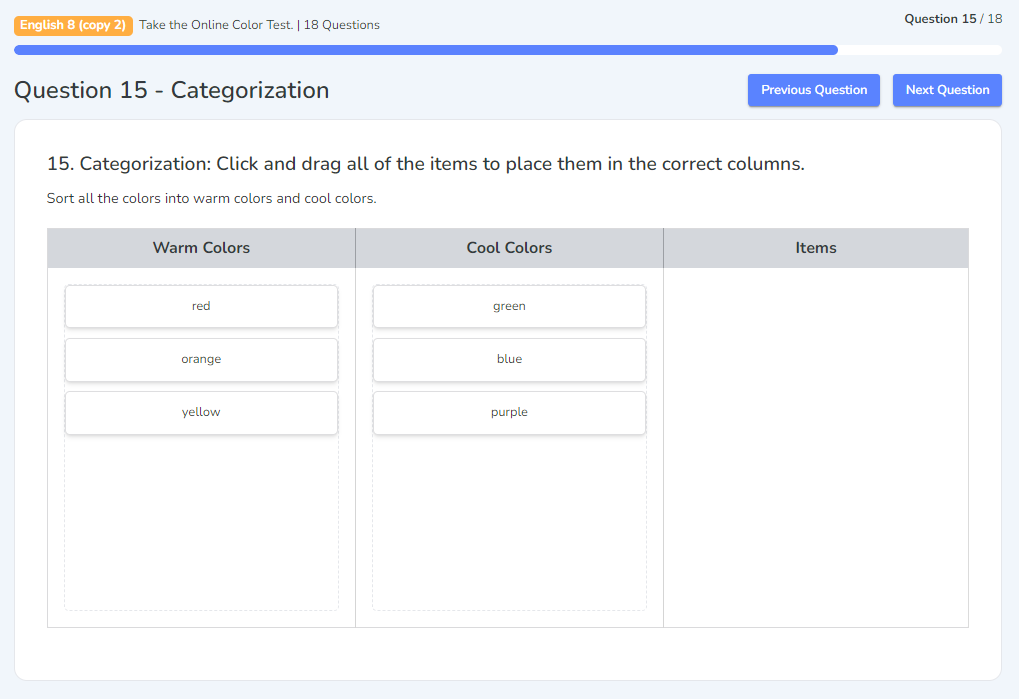
Ordering
Before
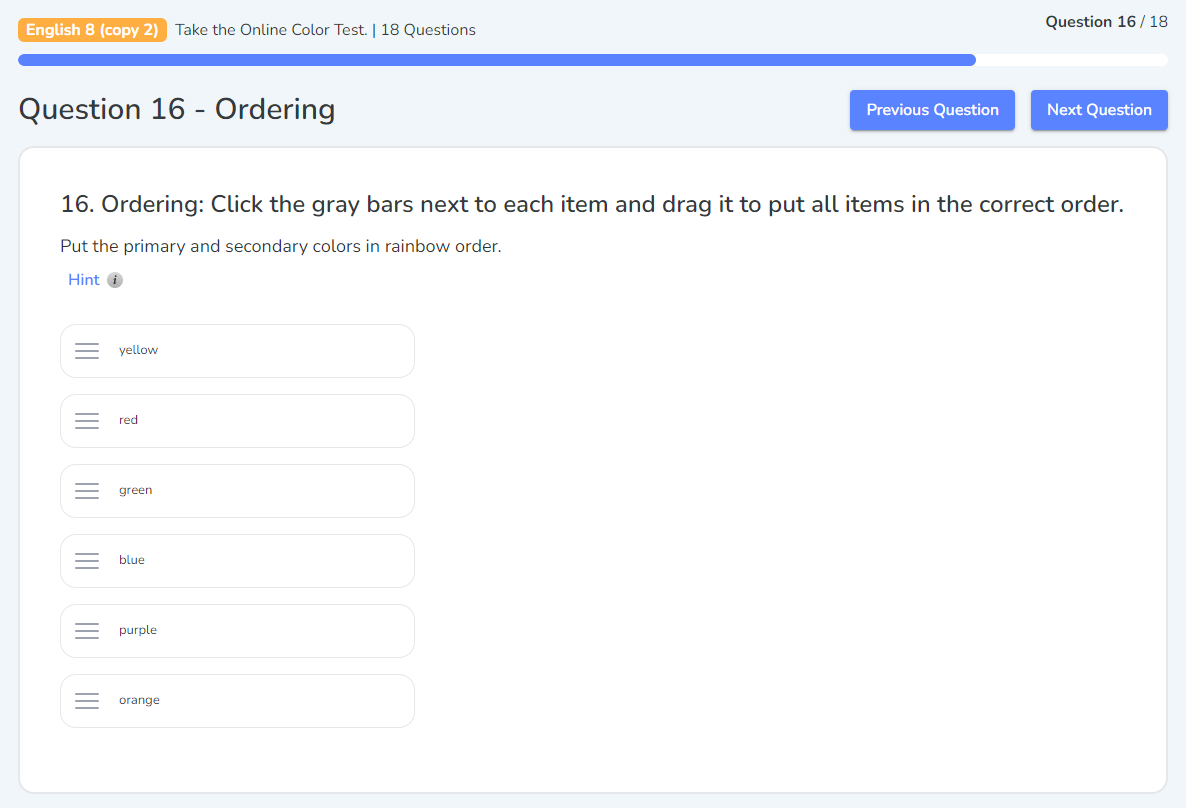
Click on the three lines and hold down to drag one answer choice before or after another.
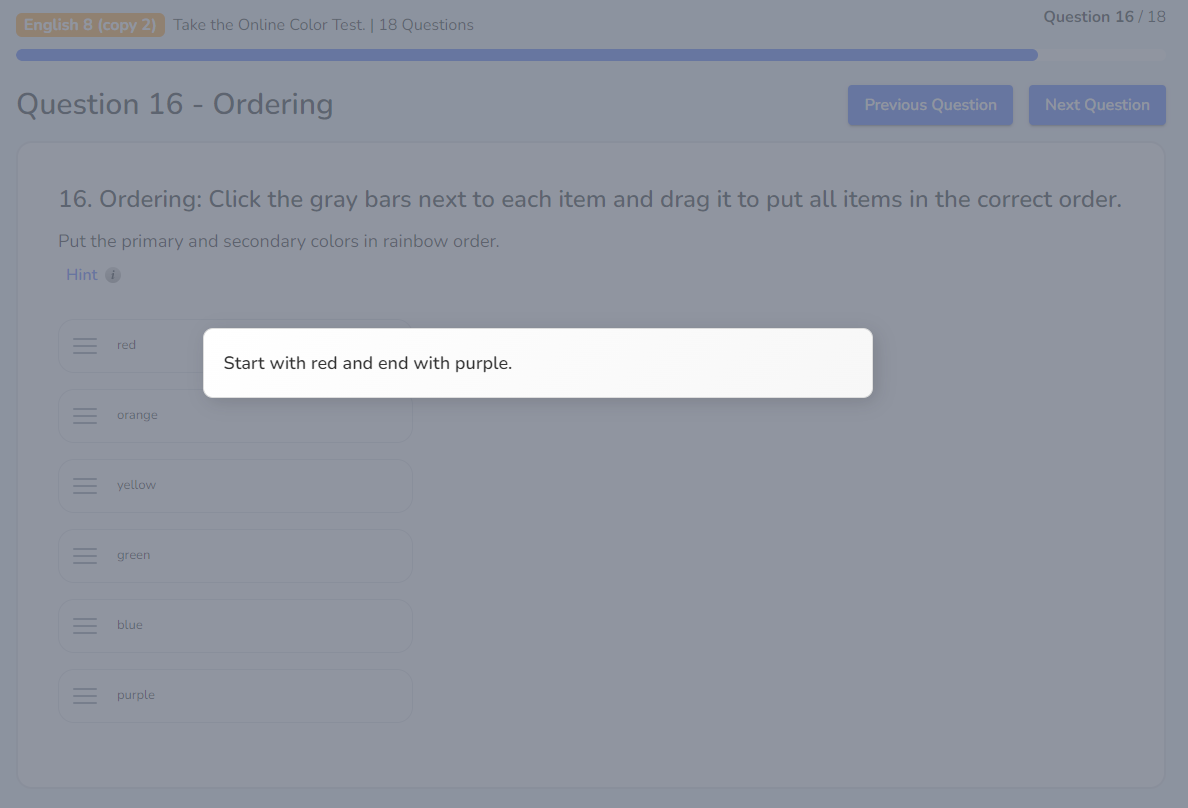
Some questions will have a Hint that you can click on to see a pop up with a hint to help you answer the question.
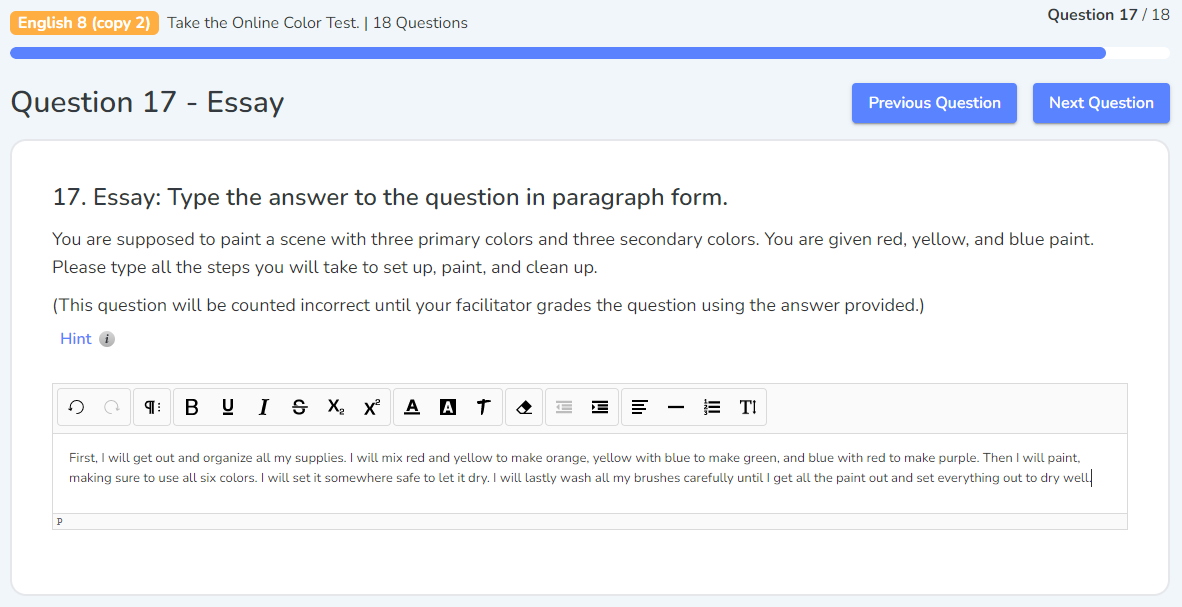
Essay
Online quizzes or tests with one or more Essay questions will need to be reviewed by your facilitator before you can see what points you have received for that question.
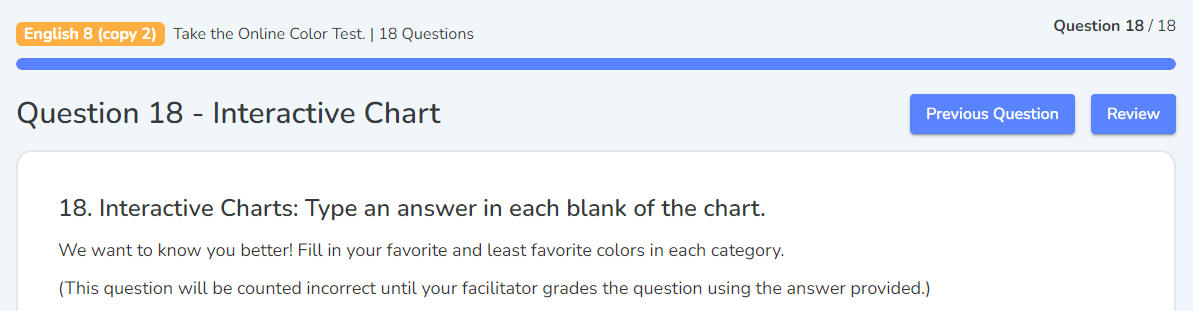
Interactive Chart
Interactive Chart questions are also not automatically graded. They may be used to assess learning in a test or quiz or as a note-taking tool in an online activity.
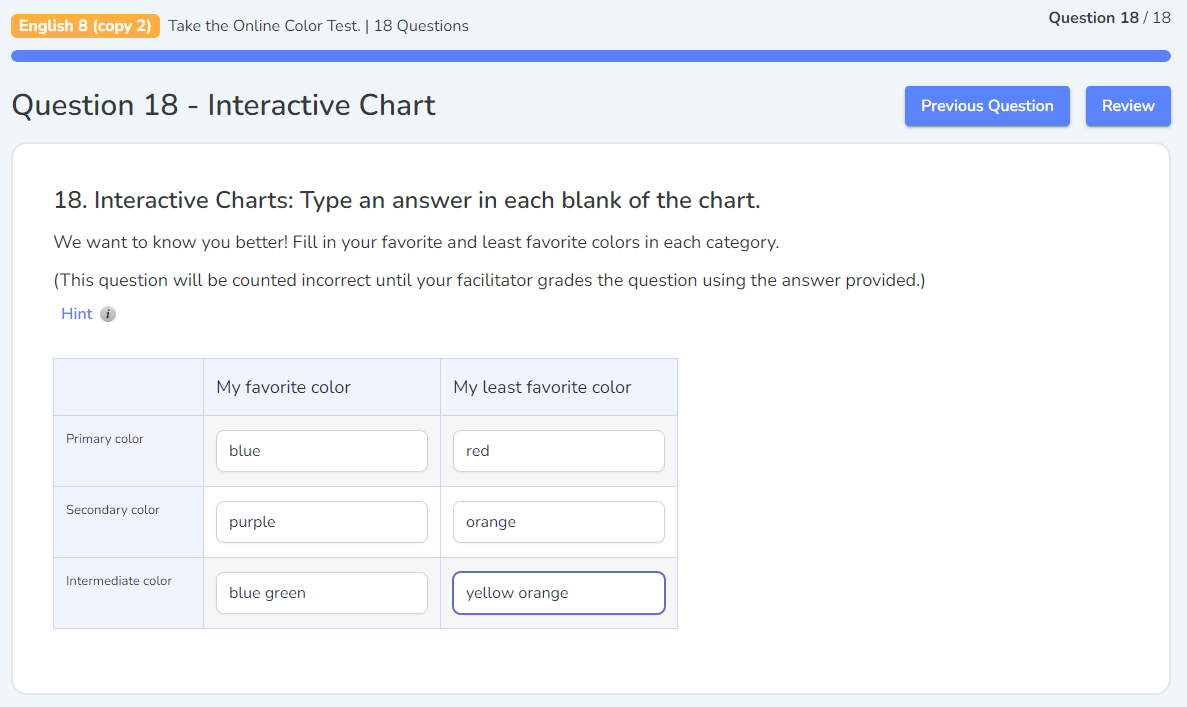
Once you have answered all questions in the assignment, select Review to review your answers.
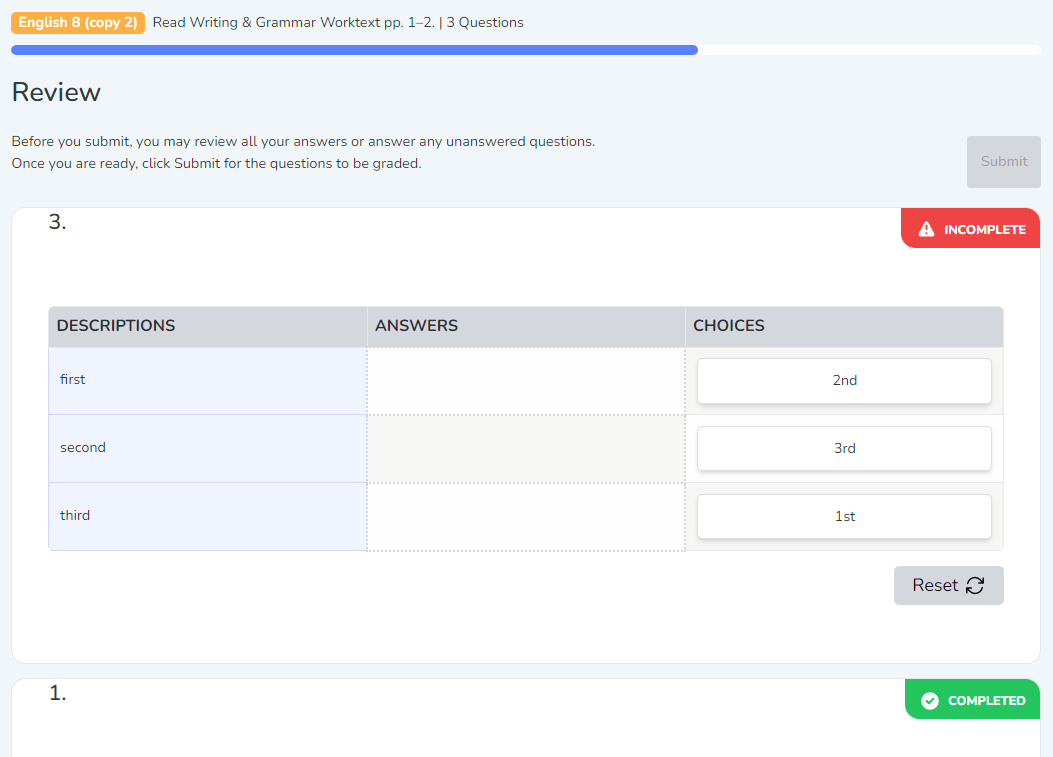
Any questions that have not yet been answered or completed will be flagged at the top of the Review page for you to complete before submitting.
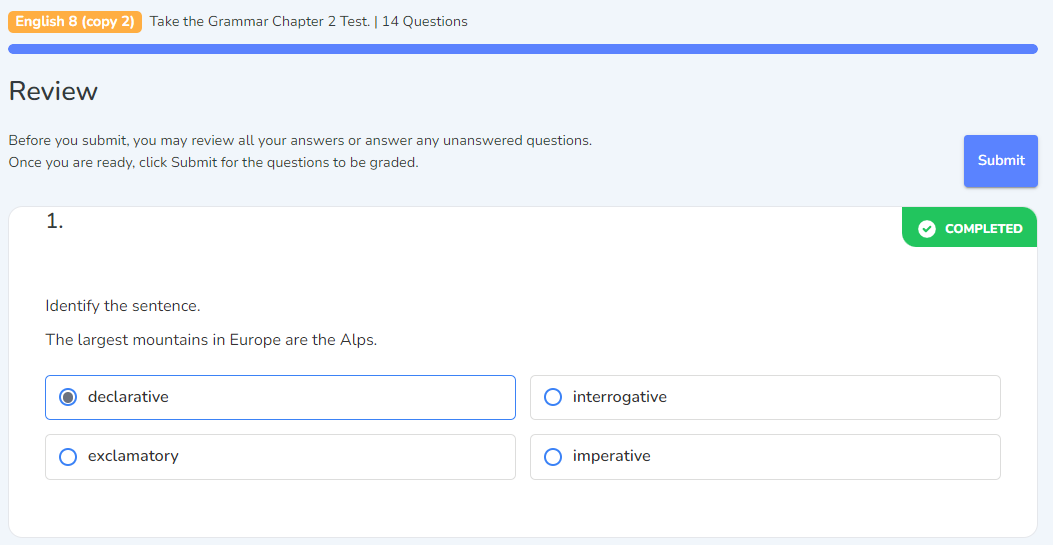
While reviewing your assessment, you can edit any of your answers directly on the review page. Select Submit when you are ready to finalize your answers.
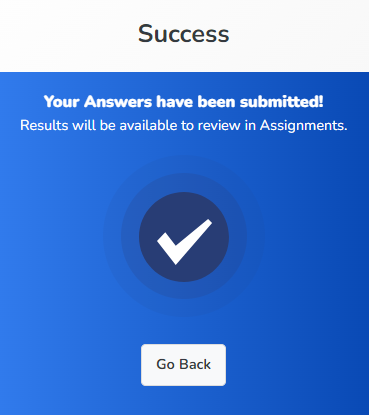
The submission box will pop up to let you know that your assignment has been submitted successfully.
Select Go Back to be taken back to the page you were on before. If your assessment does not have an essay or short questions that need to be reviewed by your parent, you can see your score in the All Assignments box. Assessments with essay questions or short answers are available for review after your parent grades them.