Select any lesson within the Calendar to bring up a menu. Here you can navigate directly to the lesson, skip, skip and replace, mark complete (or grade if the assignment has been completed), and move the lesson. To move a lesson over one day, select “Move to Next Day”.
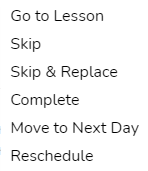
Go to Lesson
Select Go to Lesson to be taken to the lesson page associated with the lesson title on the Calendar. (See also View Lesson.)
Skip and Skip & Replace
Select Skip on the lesson menu to mark off the lesson and remove it from the Calendar and your student’s Dashboard. To replace the skipped lesson with the next available lesson, select Skip & Replace. This shifts future lessons forward and could change the course completion date.
Complete
Select Complete to mark an item as completed. This will not remove the item from the calendar but will mark it with a strikethrough, indicating the lesson has been completed.
Move to Next Day
To move a lesson to the next day, select Move to Next Day. The other lessons that are already scheduled for the date do not move.
Undo Option
While working on the calendar page, if you make a scheduling change, you can undo the action. Once you navigate away from the calendar or click the refresh button on your browser, the undo button will not be available until you start making changes again. The undo button will undo one change at a time.
Actions you can undo: Skip & Replace, Move to Next Day, Reschedule (including Drag & Drop), Catch Up All Late Lessons, Shift Lessons Completed Early, Shift to a Non-School Day, and Shift Course Lessons.
The undo option will not undo a Skip. To unskip a lesson, go to the course and unmark the check mark to skip it. An Event can be deleted by clicking on the event and deleting it from the pop-up window.
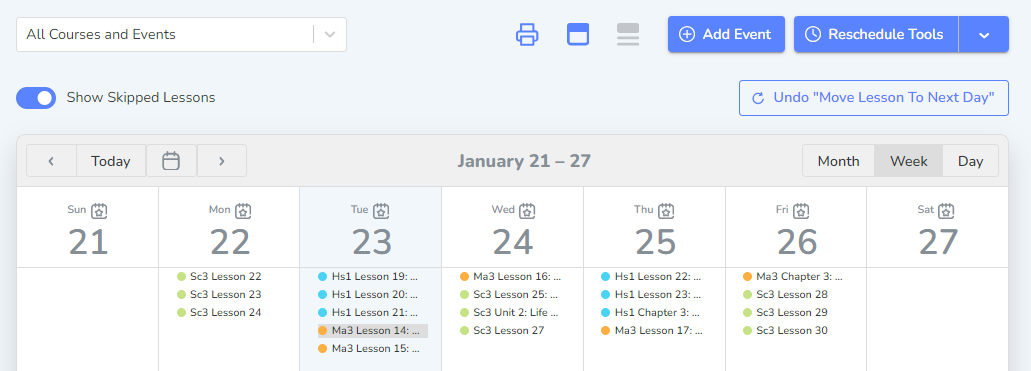
Example: The parent believes the student will not have time to do the Math lesson today but does not want to get behind. The student should do both Lesson 14 and Lesson 15 on Tuesday.
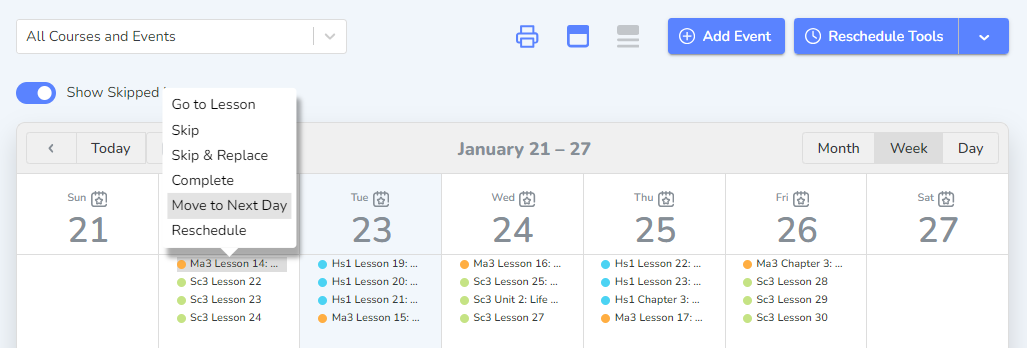
The parent clicks “Move to Next Day” but realizes the student will have time to do Math today. The parent can click “Undo ‘Move Lesson To Next Day’” to restore the schedule to before the changes.
 Reschedule
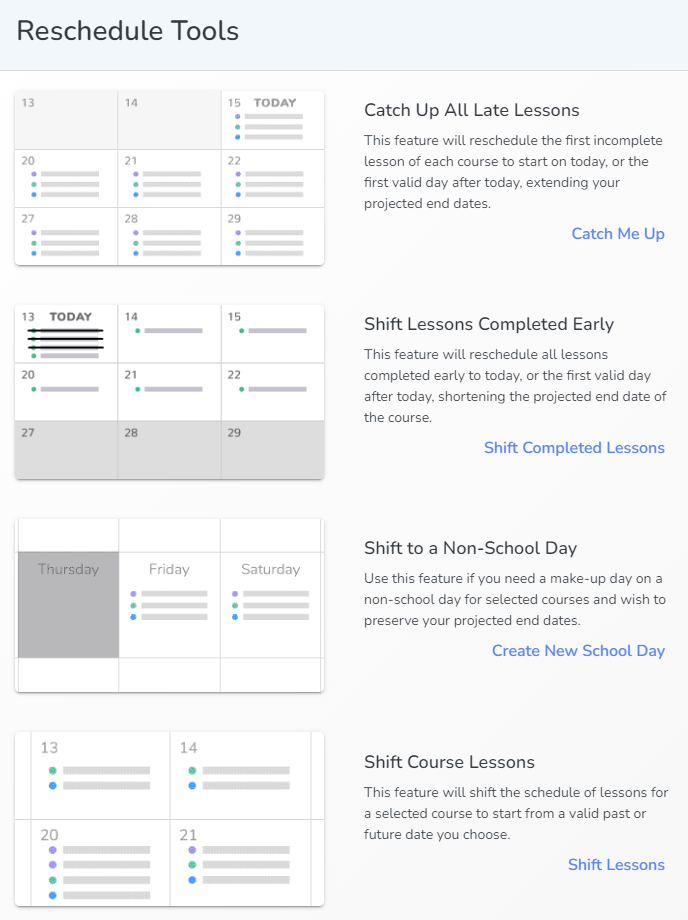
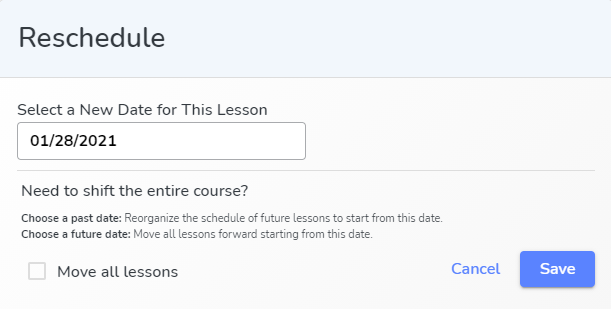
If you would like to reschedule an assignment from the calendar for a different date, select Reschedule.
This brings up the Reschedule box where you can choose a new date for the lesson. You also have the option to move all the lessons in that course from the selected. For more advanced scheduling options see Course Planner.
Drag & Drop
In the Calendar Month or Week view, you can click and drag an individual lesson onto a different day and drop it to reschedule that single lesson. It does not shift all lessons in the course. If you drop the lesson on a non-school day, the Shift to a Non-School Day pop-up will appear to help you shift the lesson(s) to the non-school day. If you have added an Event that shifts lessons off that day, you cannot drag and drop a lesson onto that day.
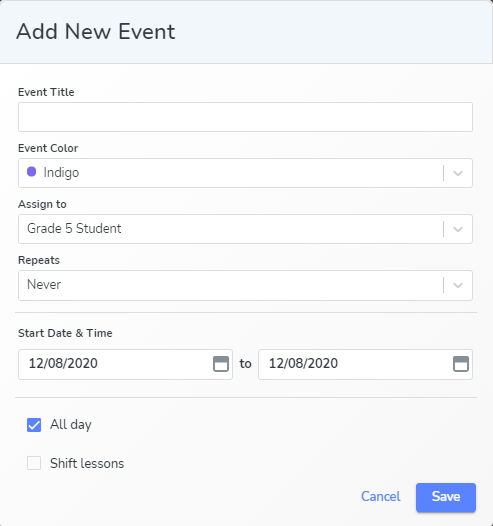
Add Event
The Add New Event button adds an item to the Calendar. Create a title, choose a color, assign an event to a specific student, and choose whether it will be repeated. Select the start and end date and time. You may choose to shift the lessons to block a date or date range from having lessons assigned.