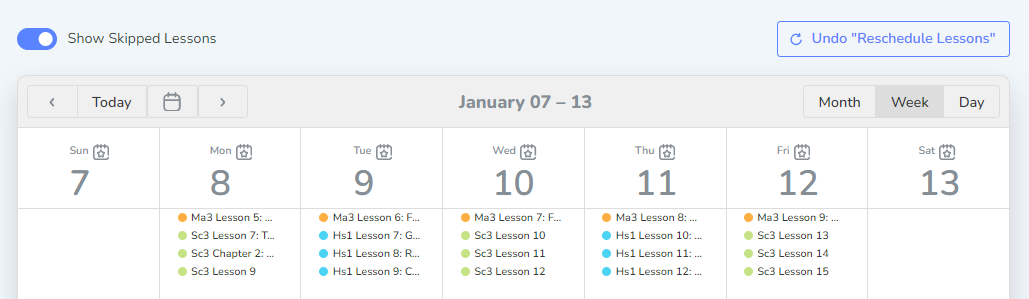
The reschedule options include shifting assignments for a course(s) and swapping a non-school day with a school day.
Catch up All Late Lessons
This feature allows you to reschedule all incomplete lessons from all courses for a student. Beginning with the first incomplete assignment, all assignments will be moved forward to the current day or next available school day. Rescheduling adjusts the projected end date for each course.
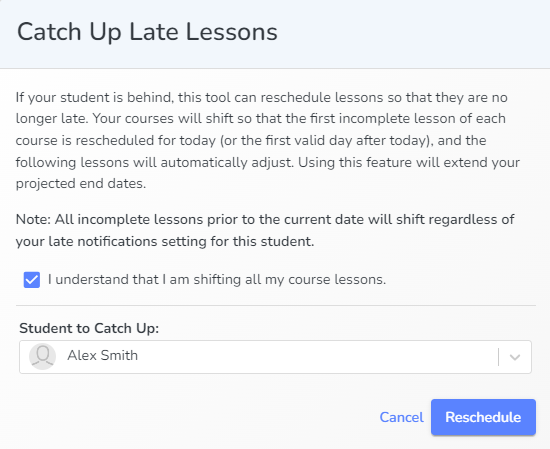 To use this feature, click Reschedule Tools and then click Catch Me Up.
Next, check to confirm that you know you will be shifting all your course lessons and adjusting the end date. Select your student from the dropdown menu and click Reschedule. All incomplete lessons prior to the current date will shift regardless of your late notifications setting for this student.
Shift to a Non-School Day
The Shift Lessons Completed Early tool will adjust the Calendar for you when your student has worked ahead. It will reschedule all lessons completed early to today, or the first valid day after today, shortening the projected end date of the course.
For Example: Today is Wednesday, and the student has already completed Lesson 23 and 24 that are scheduled for Wednesday and Thursday. The parents wants Lesson 25, currently on Friday, to be completed today (Wednesday).
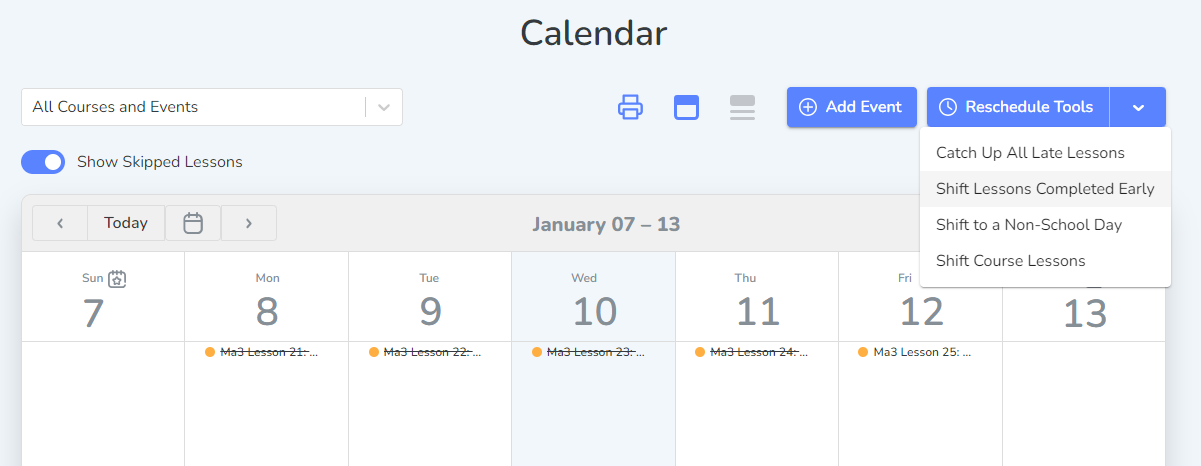
Click “Reschedule Tools” and then click “Shift Lessons Completed Early.”
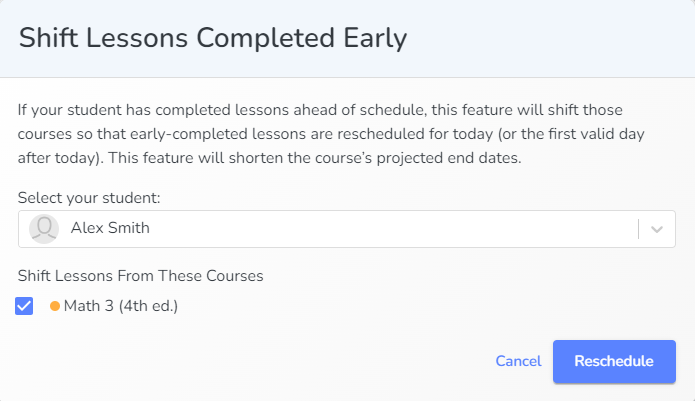
Ensure the correct student is selected and mark any of the courses you want to move. Then click “Reschedule” to finalize the changes. Notice, Lessons 23, 24, and 25 are all on Wednesday, and all the following lessons have shifted. The Homeschool Hub will still track the actual date the lessons were marked completed, but this helps your Calendar reflect the changes moving forward.

Shift to a Non-School Day
When a course is assigned to a student, days of the week are selected for coursework to be assigned. To move an assigned school date to an unassigned date, select Shift to a Non-School Day.
Example: You decide not to do school on Tuesday and instead do school on Saturday. For the week of January 21st–January 27th Tuesday’s assignments need to be shifted over and Saturday needs to be added to the school week.
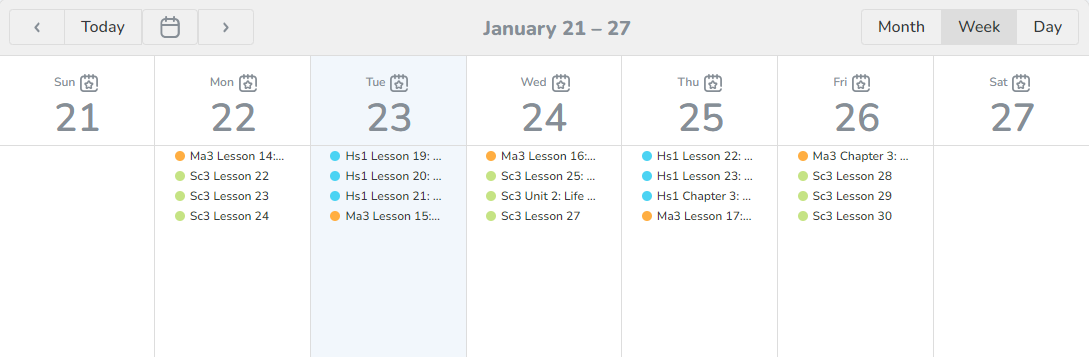
Click the calendar icon next to Saturday or select Create New School Day from the Reschedule Tools button menu.
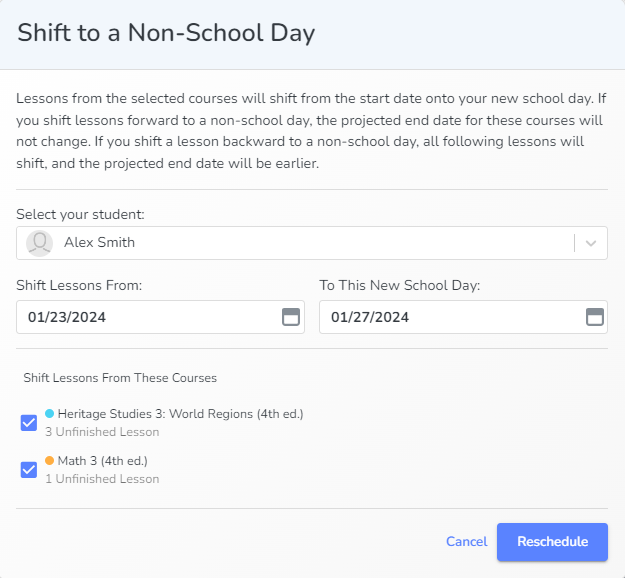
Select the student. Choose the date the lesson was originally assigned on. Next, select a date for the new school day. (The new school day may be an earlier or later date than the previous date.) Check the boxes next to each course you would like to shift to the new date. Finally, click reschedule.
The calendar then adjusts the lesson to reflect the additional school day.
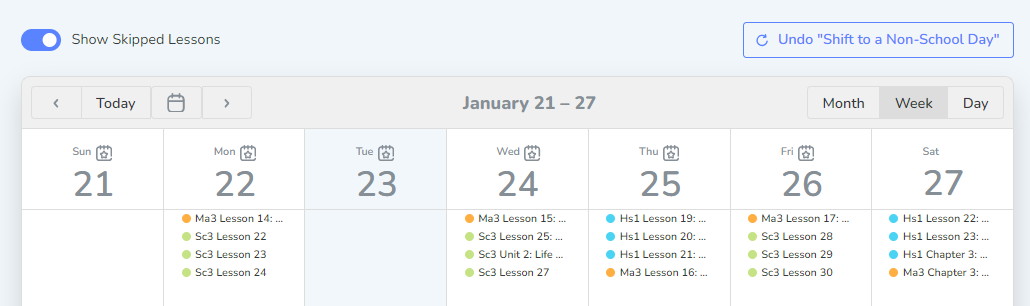
Please note that the school day shifts from the original date to the new date. The original date will no longer be available as a school day for the course(s) you shifted. Do not use to work ahead in a course.
Shift Course Lessons
This feature adjusts the calendar by shifting the courses you choose to a past or future date, which also adjusts the projected end date of the course.
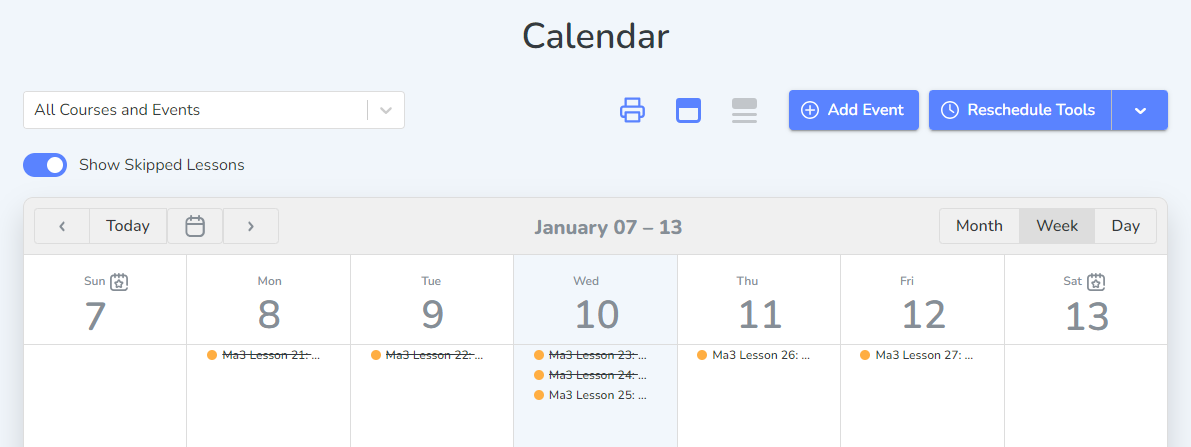
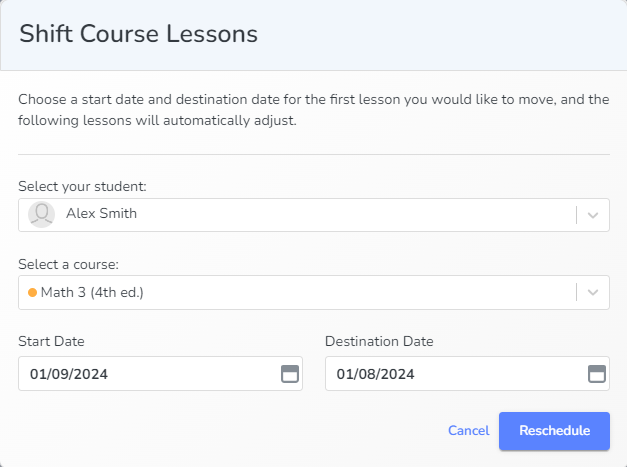
Example: For the week of January 7th–January 13th Math 3 needs to shift back from Tuesday the 9th to Monday the 8th.
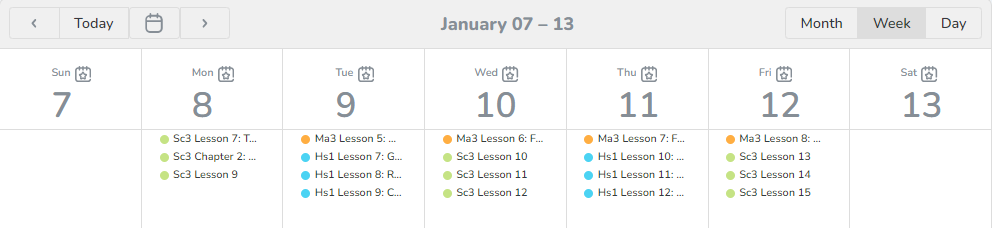
To move the course date forward or backward, select Shift Course Lessons from the Reschedule Tools menu. Select the student, course, start date (date you want to move the lesson from) and destination date (date you want to move the lesson to). Select Reschedule.
The calendar will shift to reflect the changes.