Selecting the Courses page takes you to a page that lists the courses assigned to the student selected from the dropdown menu. 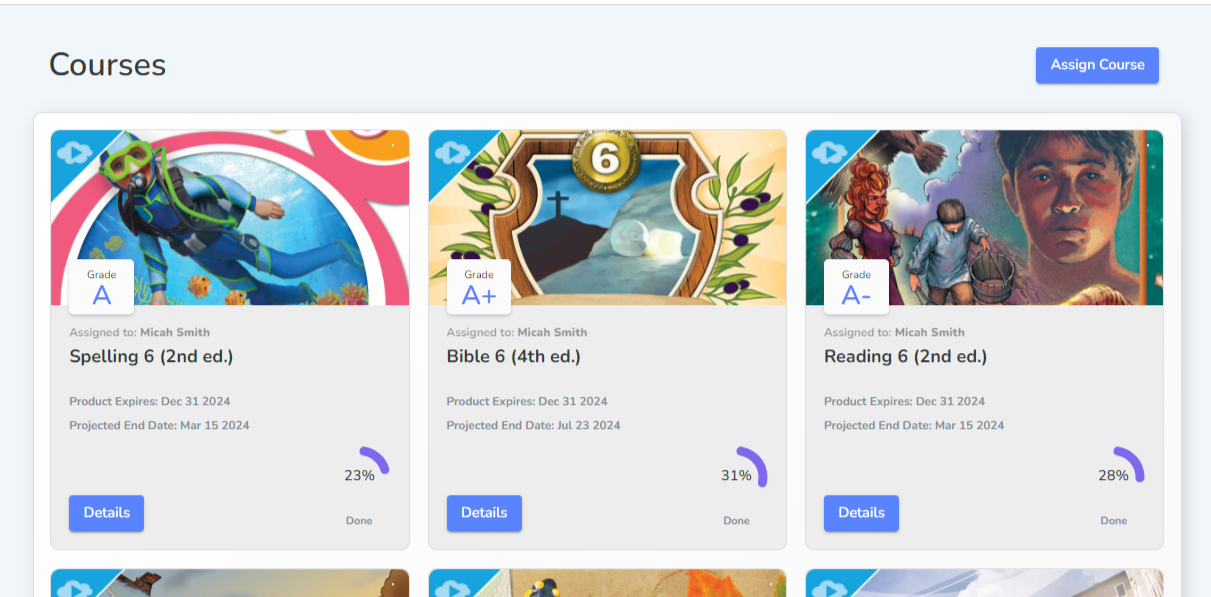
Course Cards
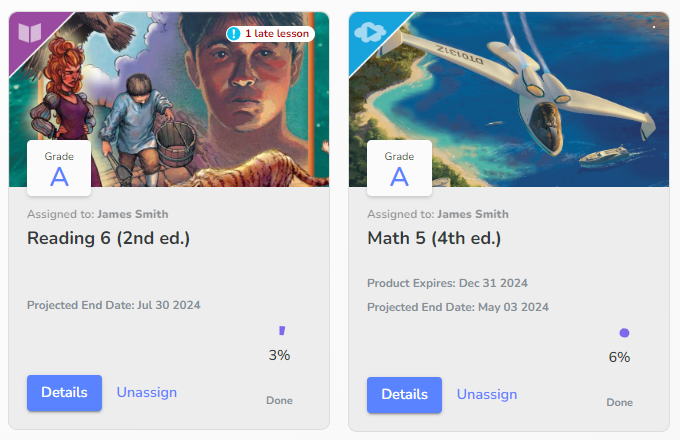
Items visible on the course card include overall course grade, number of late lessons, and percentage of the course completed by the student.
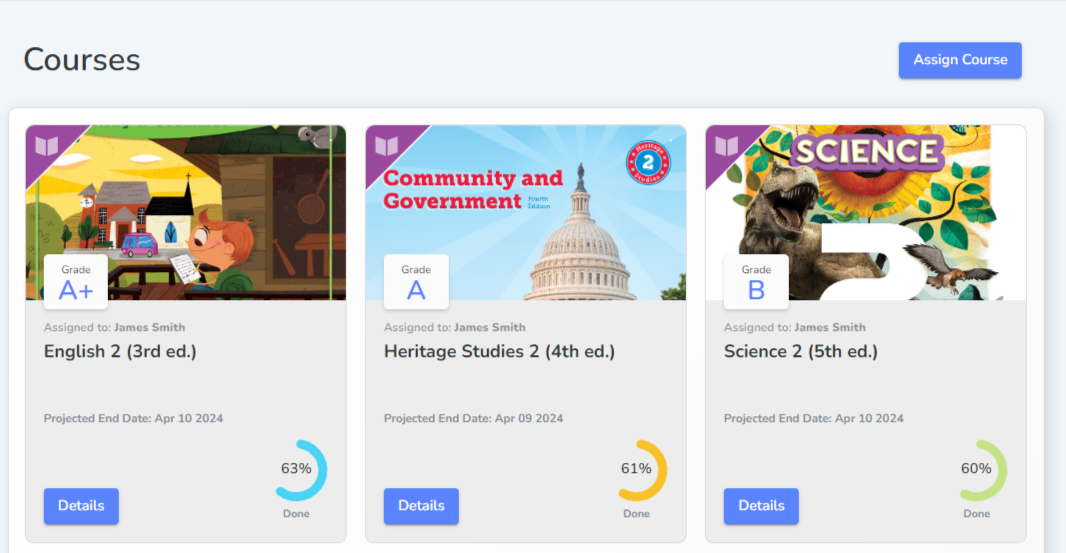
Click either the course card or the Details button to proceed to the course page.
Course Overview Page
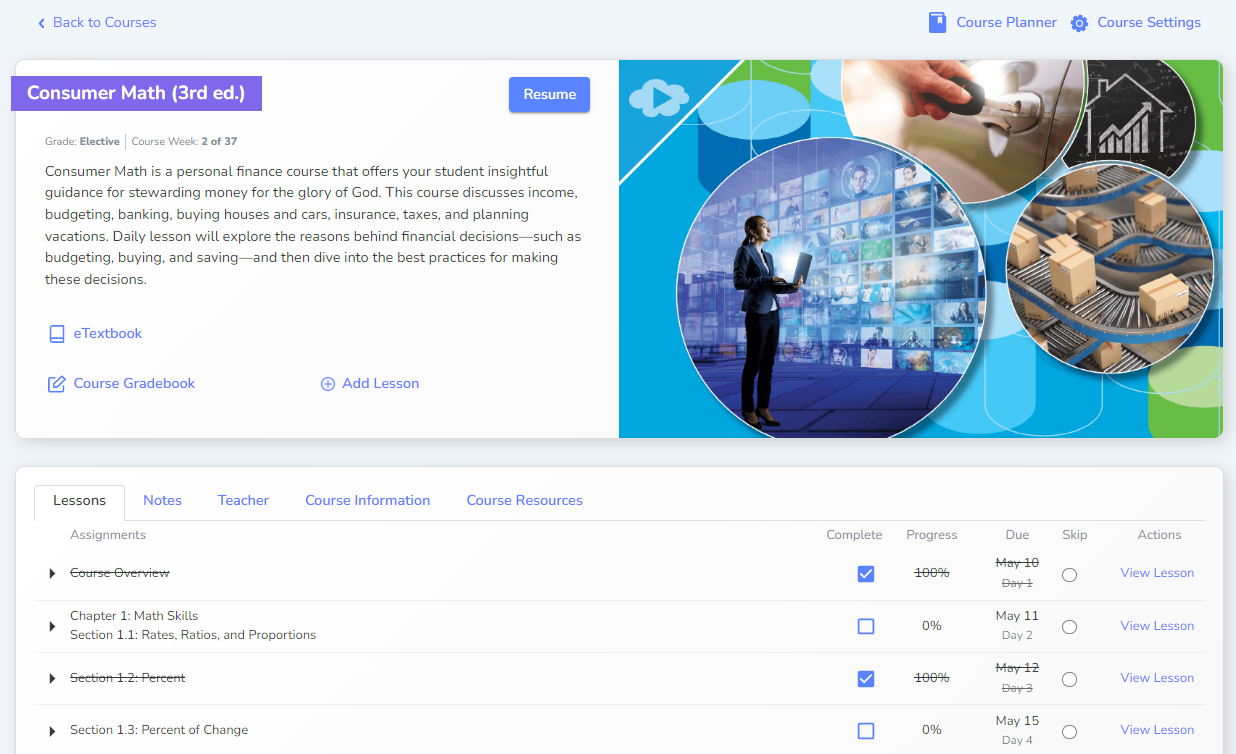
Once a course is selected, important information about the course will appear at the top. There are five tabs in the course box, Lessons, Notes, Course Information, Teacher, and Course Resources.
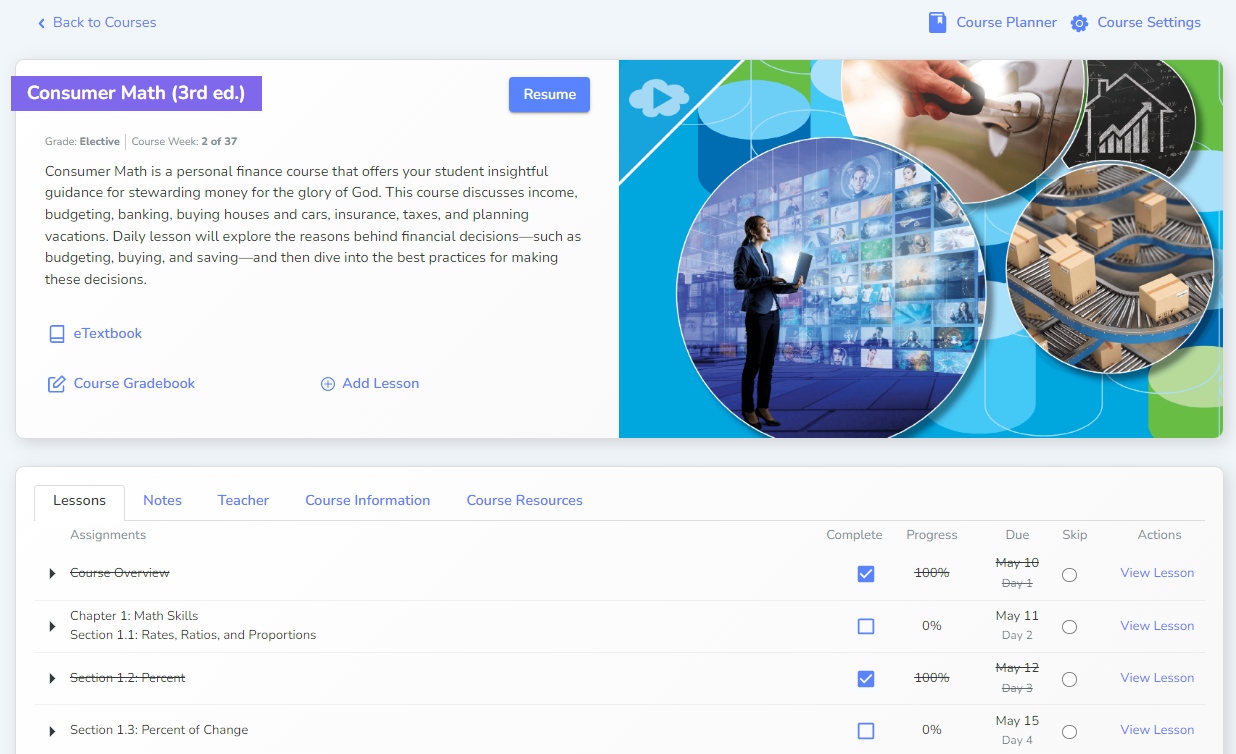
Select View Lesson to go to the lesson specified.
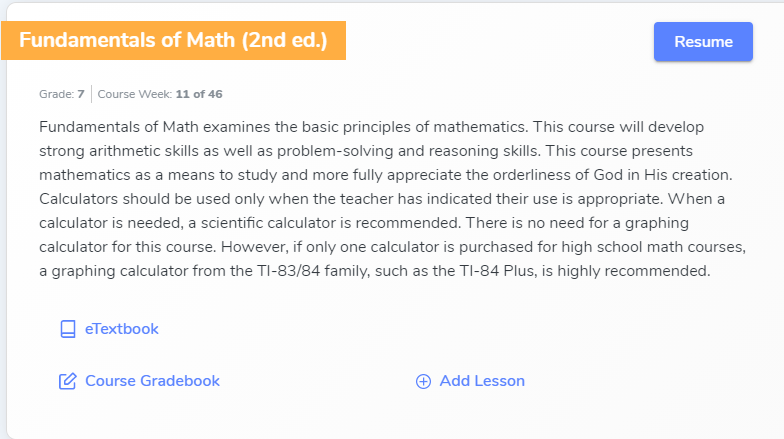
Click the Course Gradebook to review and grade or skip assignments.
If available, eTextbook will be available and open in a new tab.
Lessons
The Lessons tab shows the next lessons. Click the drop down next to the lesson to view all items for that lesson. The Calendar date for each lesson is recorded in the due column. The progress of the lesson is presented as a percentage. You can mark an item complete by checking the Complete box. You can skip and unskip an assignment in the Skip column. Select View Lesson to be taken to that lesson page.
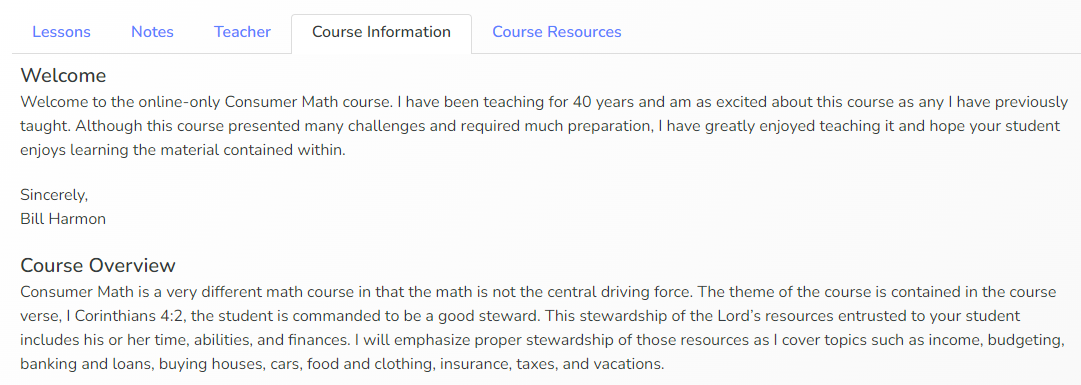
The Course Information tab gives important information about the course.
Course Resources
The Course Resources tab includes additional resources for the completion of video or parent-led courses. Resources are divided into categories including Teacher Edition, Course Files, Online Resources, and Corrections.
Teacher Edition and Course Files
Teacher Edition and Course Files are available for video courses. These include PDF versions of the teacher edition, divided by chapter, and teacher files such as answer keys and additional resources recommended by the video course teacher. For 5th grade and above, the PDFs of the Online assessments are usually available in Course Files.
Online Resources
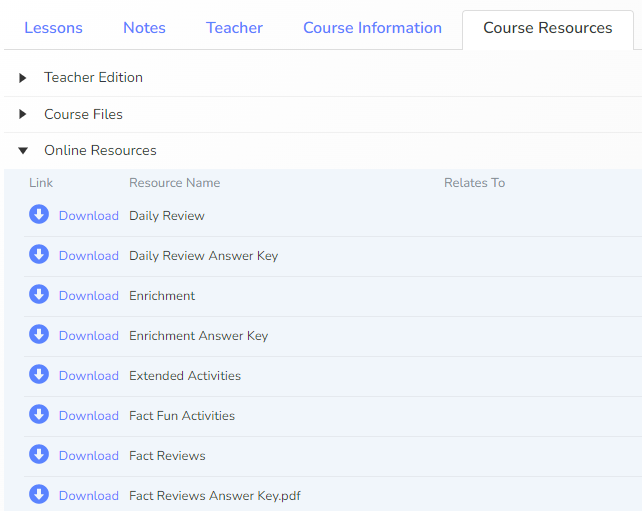
Online Resources are available for all courses and include additional, optional, or supplemental resources that have been available exclusively on the Teacher’s Toolkit CD or by special request.
Select Download to download and view files.
Corrections
Corrections list out changes to the student editions, worktexts, or teacher editions made to correct errors.