The Assignments page has two boxes: Ready for Review and All Assignments.
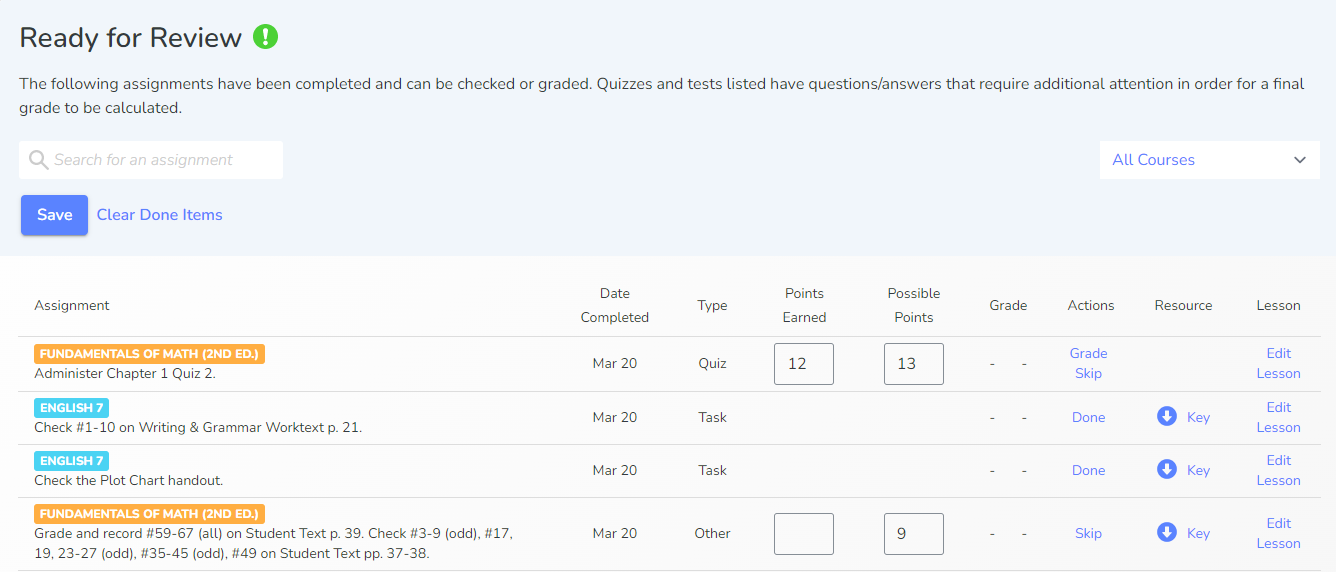 Ready for Review
Always click save when entering grades.
Filter to a specific course.
Choose Clear Done Items if you wish to clear all Tasks from all courses at once.
The Ready for Review box will show assignments completed by your student. These items need checked, reviewed, or graded. Select Skip to remove the graded assignment from the gradebook. Select Done next to tasks that have been checked but do not need to be graded. (The answer key is available in the resource column.) Click Save when your review is complete.
The Edit Lesson link can take you directly to the lesson that Assignment is on to edit settings like the date completed, the Assignment Type, or the Expected Time To Complete.
All Assignments
Click to adjust grades, then select Save when complete.
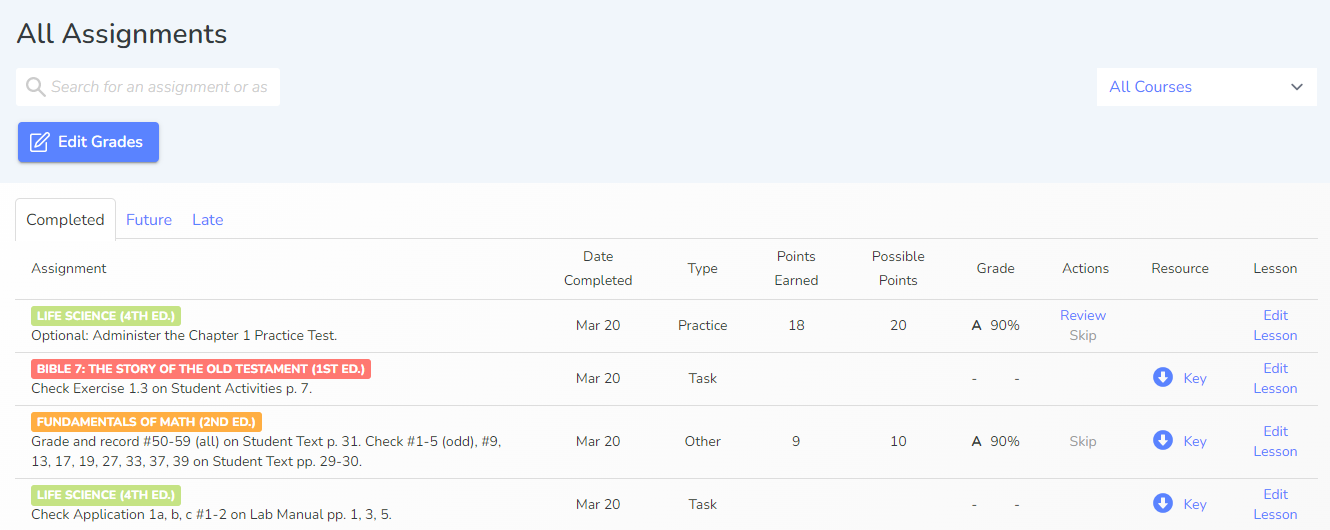 This box sorts assignments as Completed, Future and Late. All the answer keys are available for the assignments in the Resource column. Review and change grades for assignments by clicking the Edit Grades button.
Grading Assignments
In Ready for Review, or the Ungraded tab of the Course Gradebook, the Actions column gives options to Grade or Skip assignments that have been completed online in your student’s account. If an assignment has been skipped, you can Unskip or Review the assignment from the course gradebook.
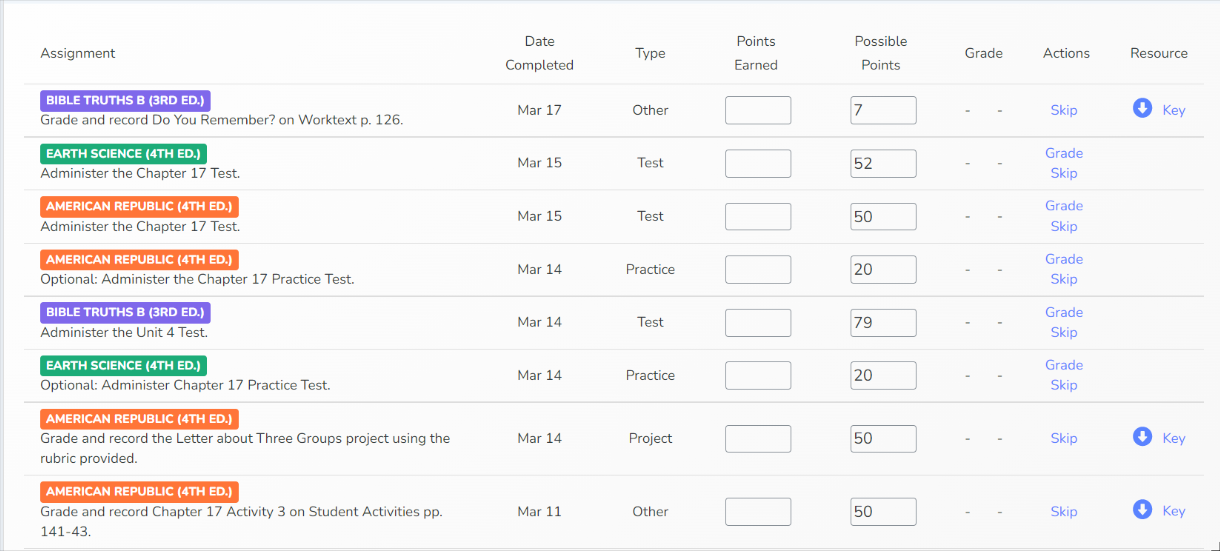
Grade takes you to the Grade Assessment page, where you can review your student’s answers.
Adjusting Grades for Assessments
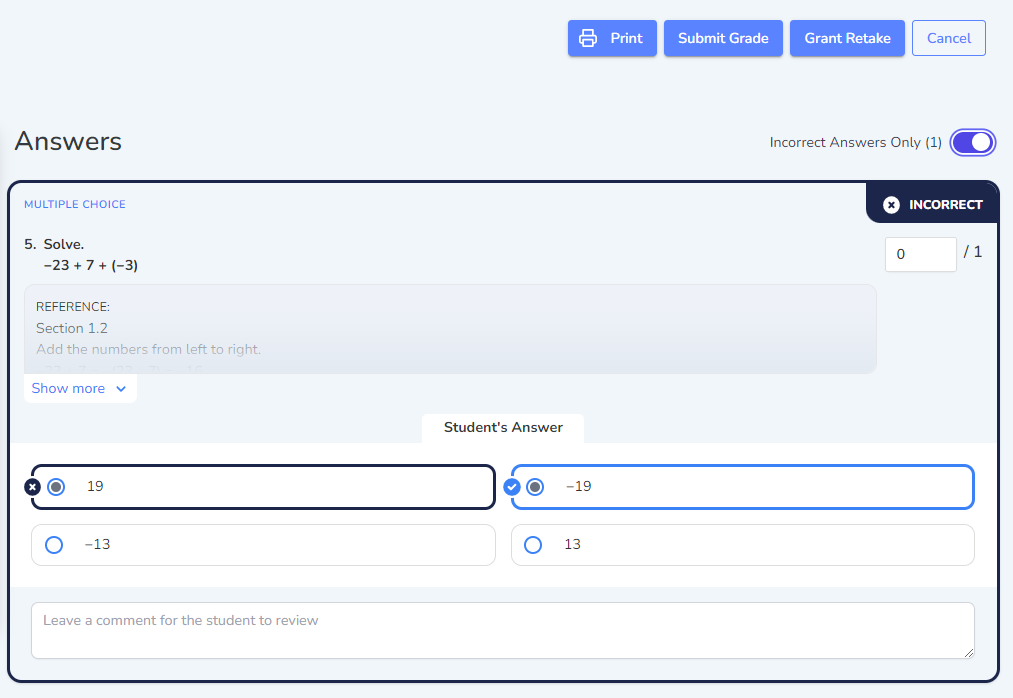
In the right-hand corner of each assessment question is an editable box where you can adjust the score for each question. The comments section under each question gives you the option to provide feedback on your student’s work.
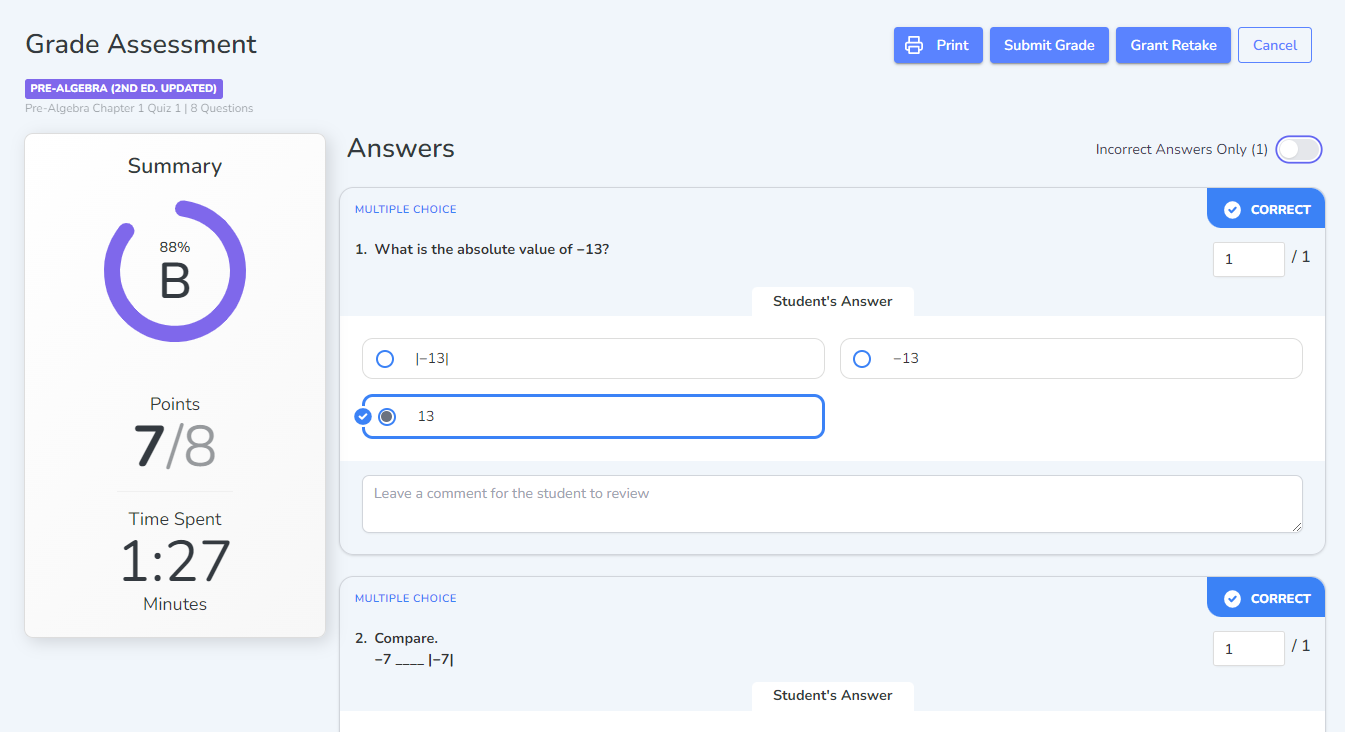
Click the Incorrect Answers Only toggle to see only the questions the student got incorrect or questions like Essays that the parent should review. You can see the student’s answer, the correct answer, and all other answer options.
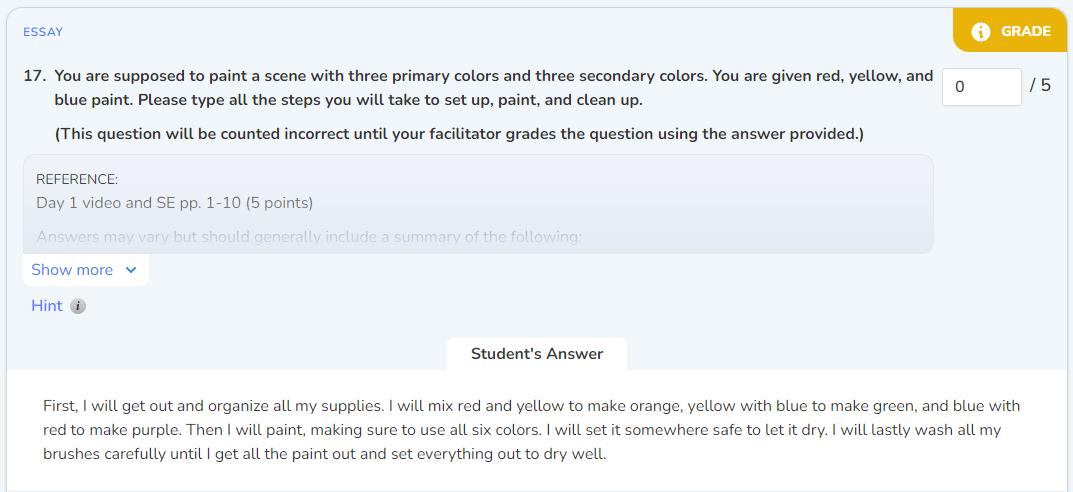
Essay Questions
Essay questions are automatically counted incorrect until they are reviewed and awarded points.
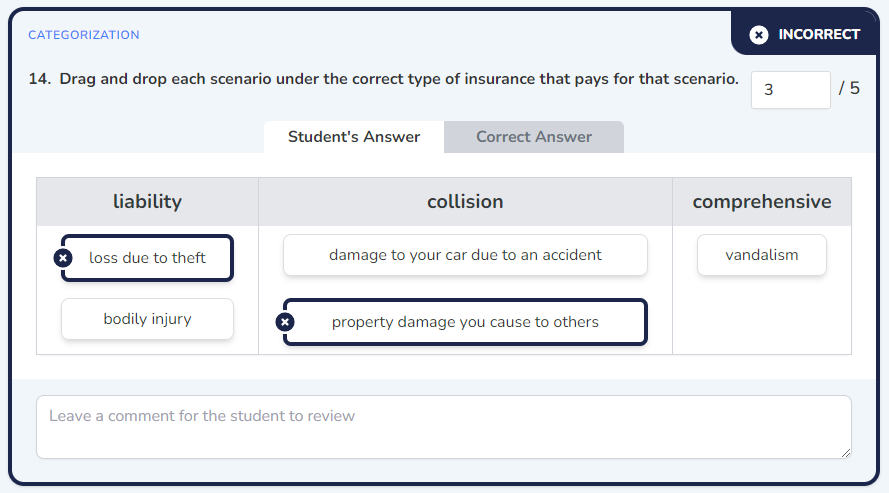
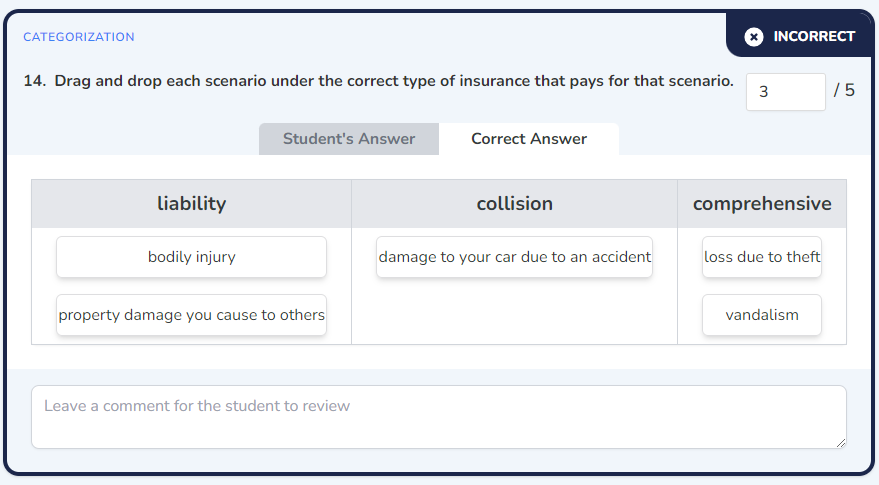
For some questions, you may need to click the Correct Answer tab to switch from the Student’s Answer tab to see the correct answers.
Student’s Answer
Correct Answer
Submit Grade, Grant Retake
Once you have finished reviewing and adjusting the grade for the assignment, you can submit the grade at the top of the page. If you would like to allow your student to retake the graded assessment, select the Grant Retake option. If you do not want to save the changes you made, choose Cancel. The option to print will be available at the top of the review test or quiz page.
