The Dashboard provides an overview of your daily assignments. You can minimize and maximize your displayed widgets.
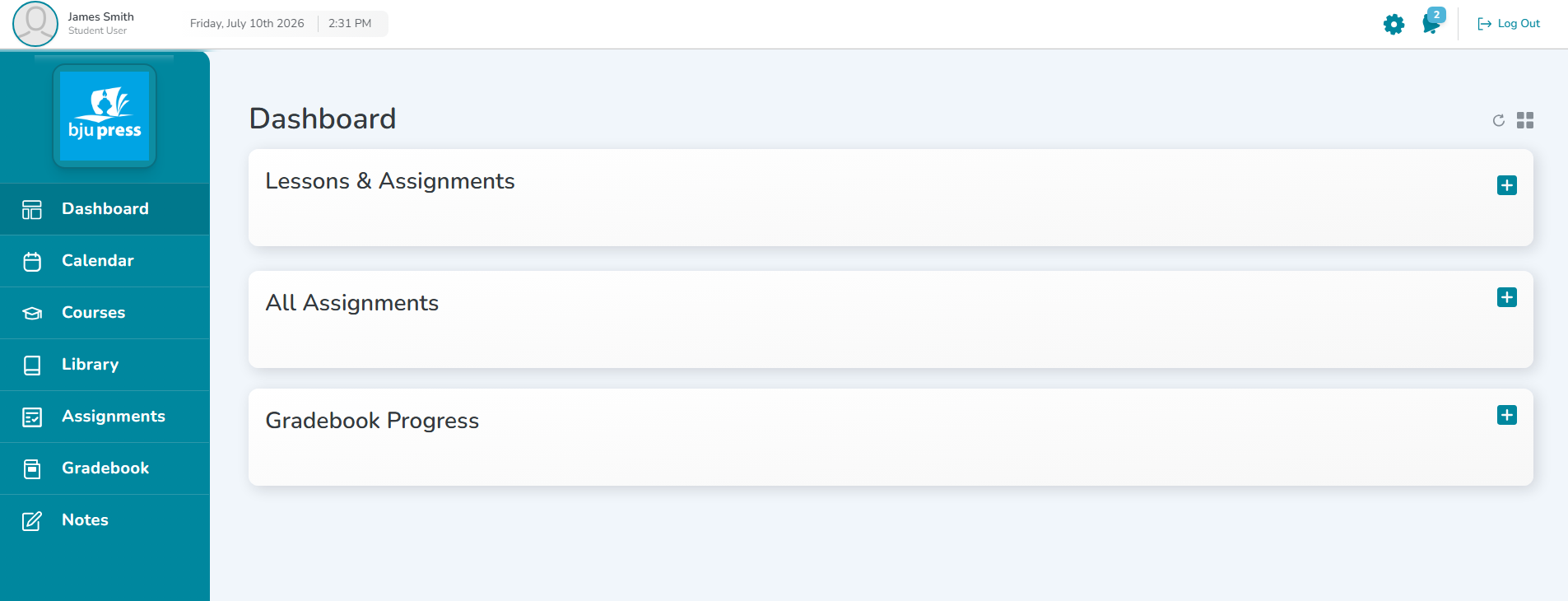
Click the plus button to expand.
To customize the Dashboard, click on the gear icon in the right-hand corner.
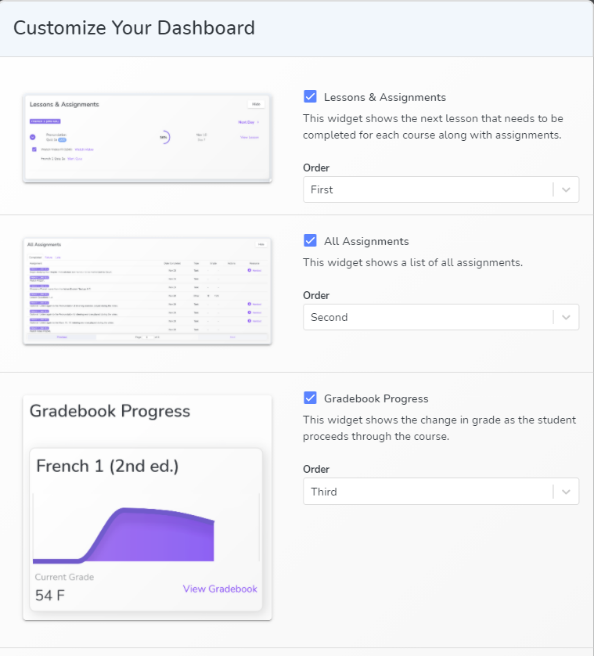
This brings up a menu where you can choose the widgets you would like on your dashboard. You can also select the order in which you would like them to appear.
Lessons & Assignments
The next lesson assigned for each course appears under the Lessons & Assignments box. Click the arrow to show all tasks for that lesson.
Click Next Day to see the next day’s assignments. Click Return to go back to today’s view.
.png)
.png)
Go directly to the assigned video or start the test/quiz directly from this list.
Click the drop down arrow to view the assignments for that lesson and mark them complete from here.
Once you finish your work and mark off all assignments scheduled for the day, the course completion graph shows a 100%, and you have the option to work ahead. Select Click Here to Work Ahead to view the next day’s assignments and begin completing them.
Gradebook Progress
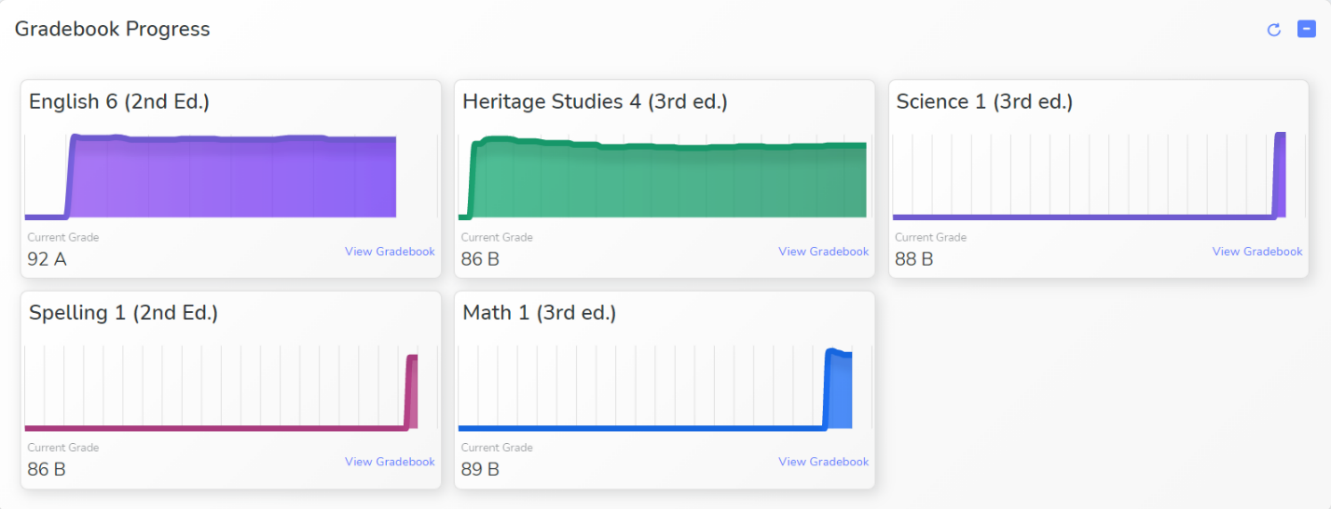
The Gradebook Progress widget is available if your teacher or parent has made grades visible in your account. It shows an overall grade for each course and includes a link to go to the gradebook.
All Assignments
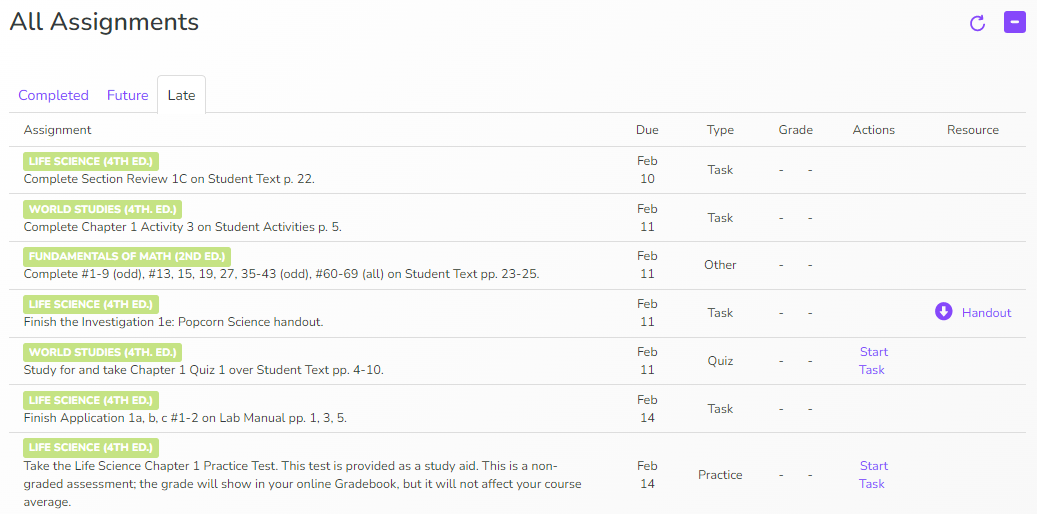
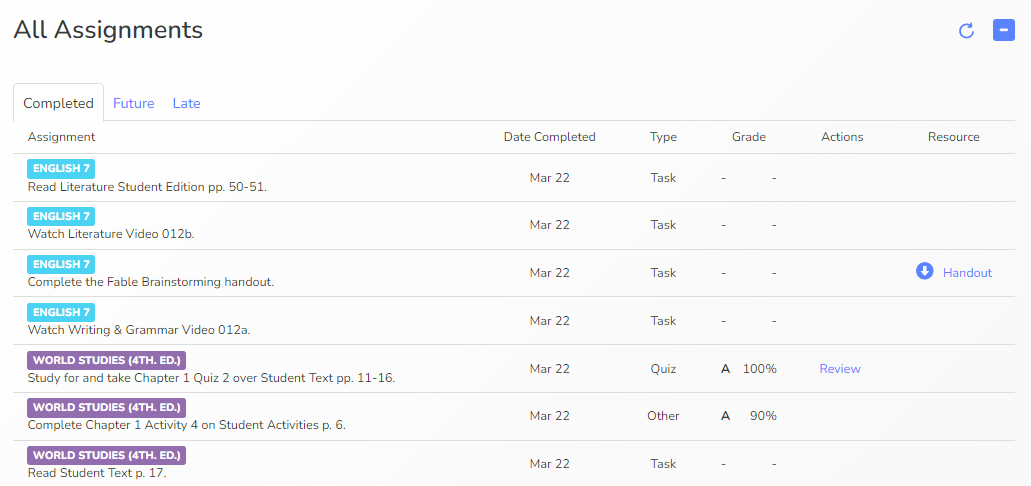
The All Assignments widget is categorized into Completed, Future, and Late tabs. Completed tests and quizzes are available for review once your teacher or parent has graded the assignment. If you have been granted a retake for an assessment from a previous day, it will show in the Late tab. Handouts related to projects are available in the Resource column.
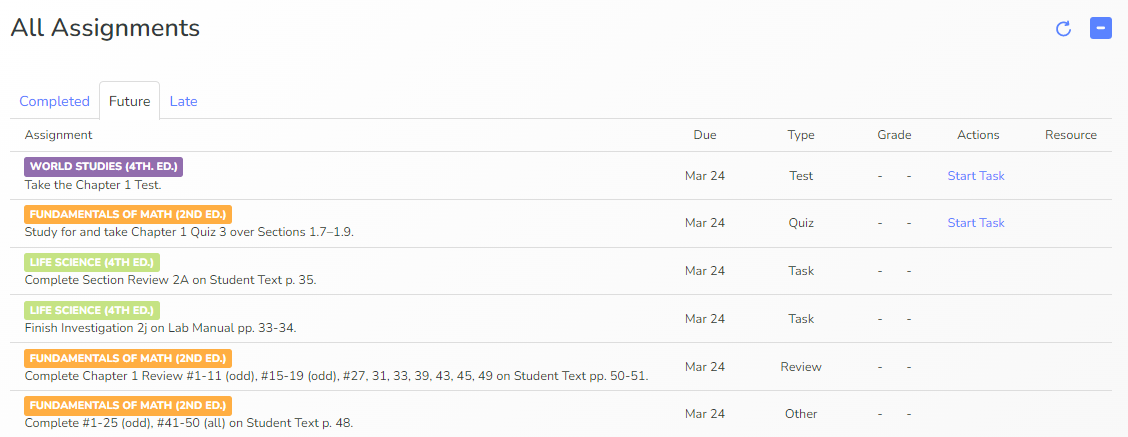
The Future tab includes Start Task in the Actions column if you are ready to do the online test, quiz, or activity.
Any uncompleted assignments past the due date appear in the Late tab. Handouts will be linked and Online assessments or tasks can be started by click Start Task under the Actions column.