The Dashboard is the first page you will see when you login to your account. The information visible is specific to the student that you select from the dropdown menu at the top of the screen. The Dashboard is fully customizable with 5 different widgets that you can choose to display, hide, or order as you would like. You can create customized dashboards for each of your students.
.png)
Expand or contract the widget using the + or - button.
Course Progress Overview Widget
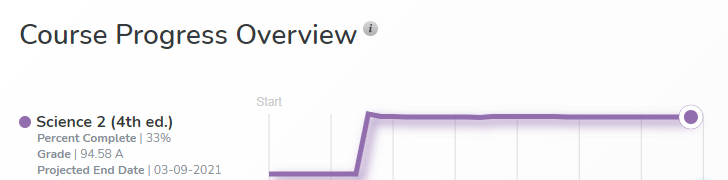
The Course Progress Overview widget gives a visual of the student’s grade over time. The percentage completed, the grade, and the projected end date for each course are listed under each course name.
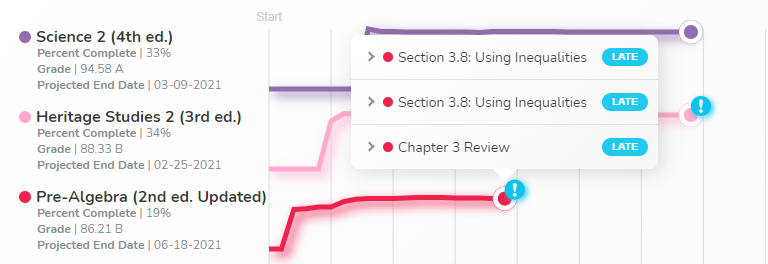
An exclamation point at the end of a course graph is an alert indicating missed lessons. Click on the alert to populate a list of the missed items.
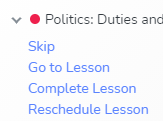
Select the arrow to view options.
Note: The graph updates as the course is completed. If a later lesson is completed before the preceding lessons, the graph will fill into the latest lesson completed.
In the top right corner, there is a Catch Me Up button. This reassigns any late lessons by pushing the course’s projected end date forward and moving all your student’s assignments to the next available school day, starting with the current day. See Catch Me Up.
Lessons & Assignments Widget
The Lessons & Assignments widget shows each course and the next lesson to be completed. See also Assignments.
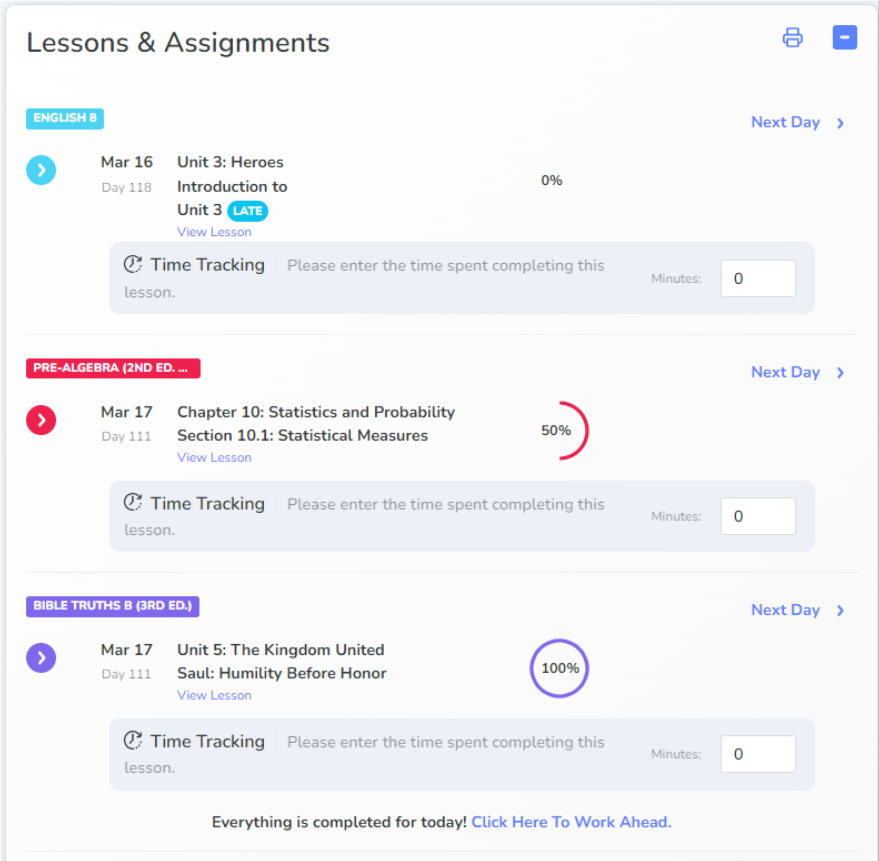
The Late icon will appear if a lesson is overdue.
Once a course’s assignments have been completed, the student has the option to work ahead.
Select Next Day to view the next lesson.
Click the drop-down arrow to view each assignment in the lesson.
Completed Widget
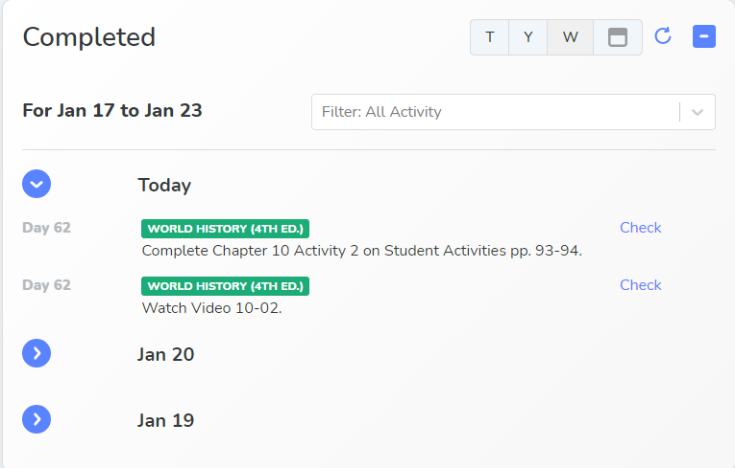
The Completed widget shows the assignments completed by your student. You have the option to check, grade, or review the assignment from this widget. 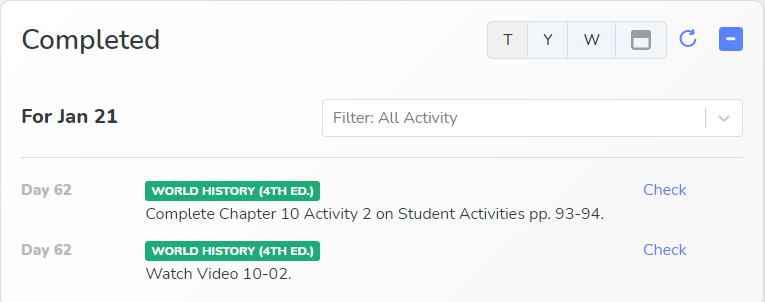
Filtered to Today.
Here you can filter to a specific assignment type and/or by date. Activity types include tests, reviews, tasks, and other.
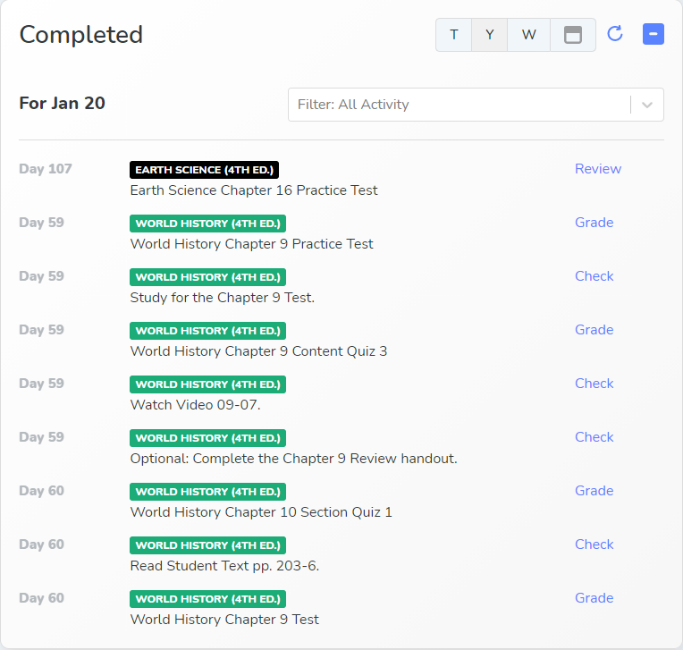
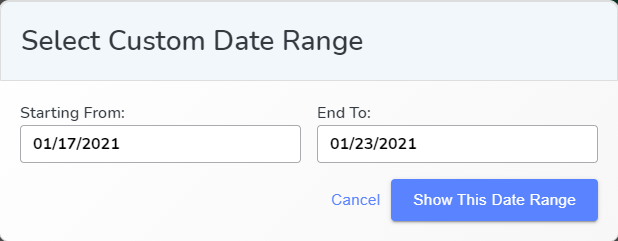
To choose a custom date range, select the calendar icon. Select a starting and ending date.
Upcoming Widget
The Upcoming widget shows the assignments that your student must complete within the date range you select. You can filter by assignment type and the date range of your choice.
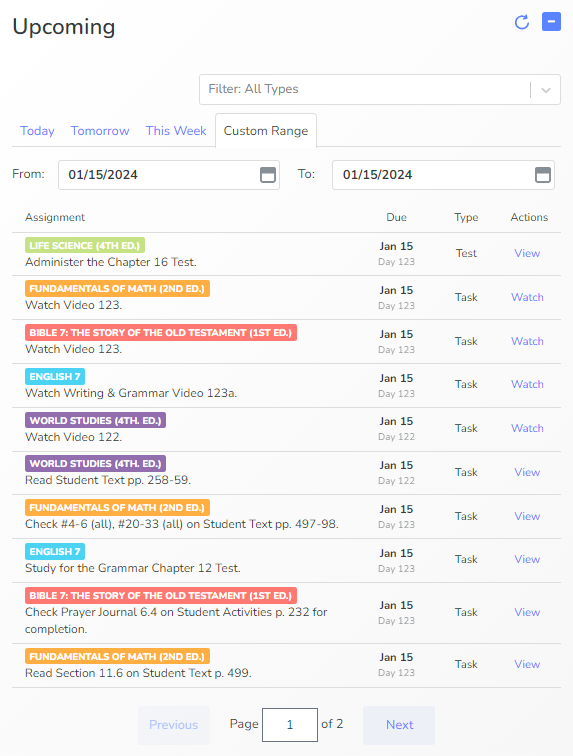
From this widget you can choose “Watch” to go to the video or click “View” on any assignment to go to that lesson.
Materials & Resources Widget
The Materials & Resources widget gives you a list of the materials needed for each upcoming lesson.
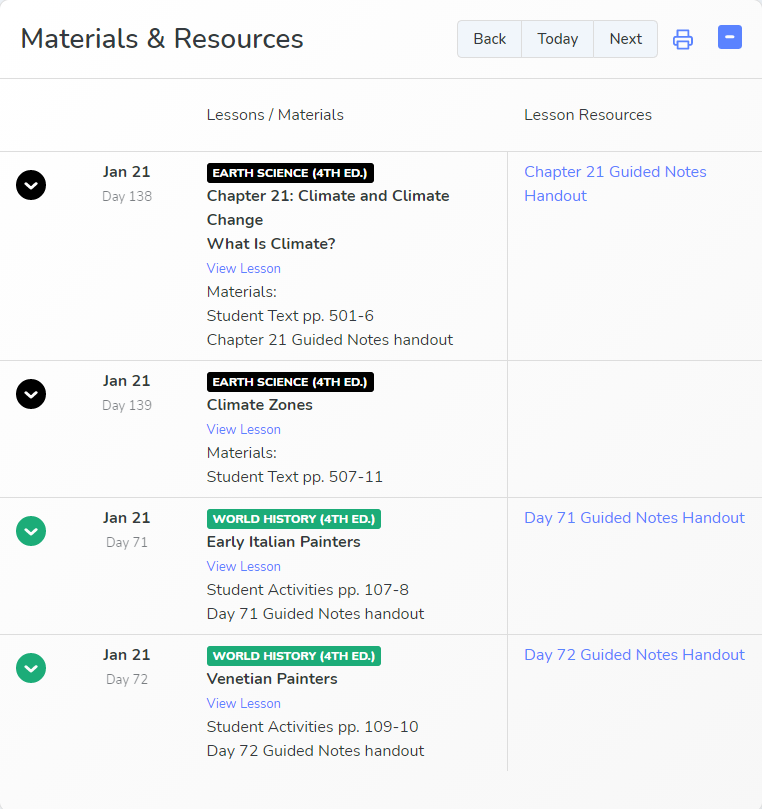
The Lesson Resources column has any handouts that your student needs for the assignment. Some of these handouts are interactive and can be downloaded to fill in the blanks. You can also print the handout from this link.
Go directly to the lesson by clicking View Lesson.
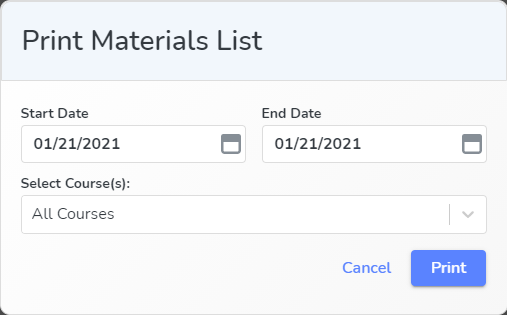
Select “Print” to print out a list of materials you will need for the chosen date range and courses.