Connecting Students Currently Using the Homeschool Hub
In Settings, click on the Access & Permissions tab.
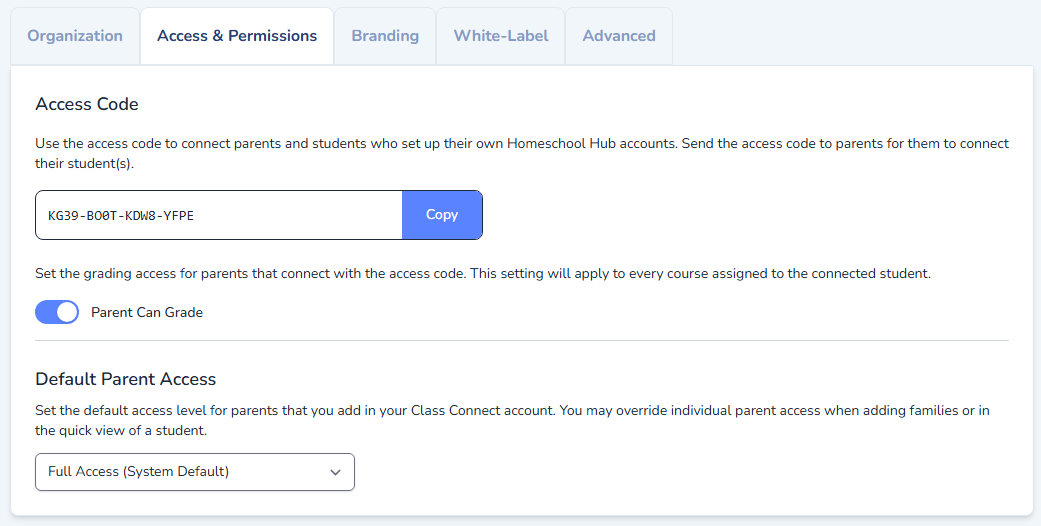
The Access Code connects the student with the organization in Class Connect. Copy the code and distribute it to your parents.
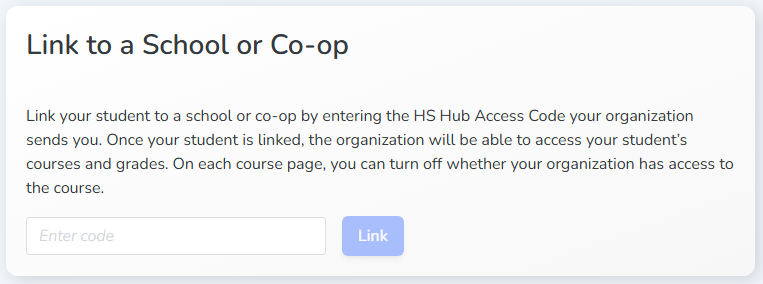
Once the parent has the code, the parent will login to their account in the Homeschool Hub. The parent will click on their profile and edit one of their students. At the bottom of the page, there is an area where they will be able to enter the code. Once linked, the school or co-op will have access to the student.
Students added by the Organization
Organizations can be configured to add parents and students and manage the accounts.
On the Students page, click Add a Student.
On the Add a Student page, the organization can perform the following functions:
Search for existing families that the organization has added to add additional students
Manually add parents and students
Import parent and student accounts using the provided spreadsheet templates
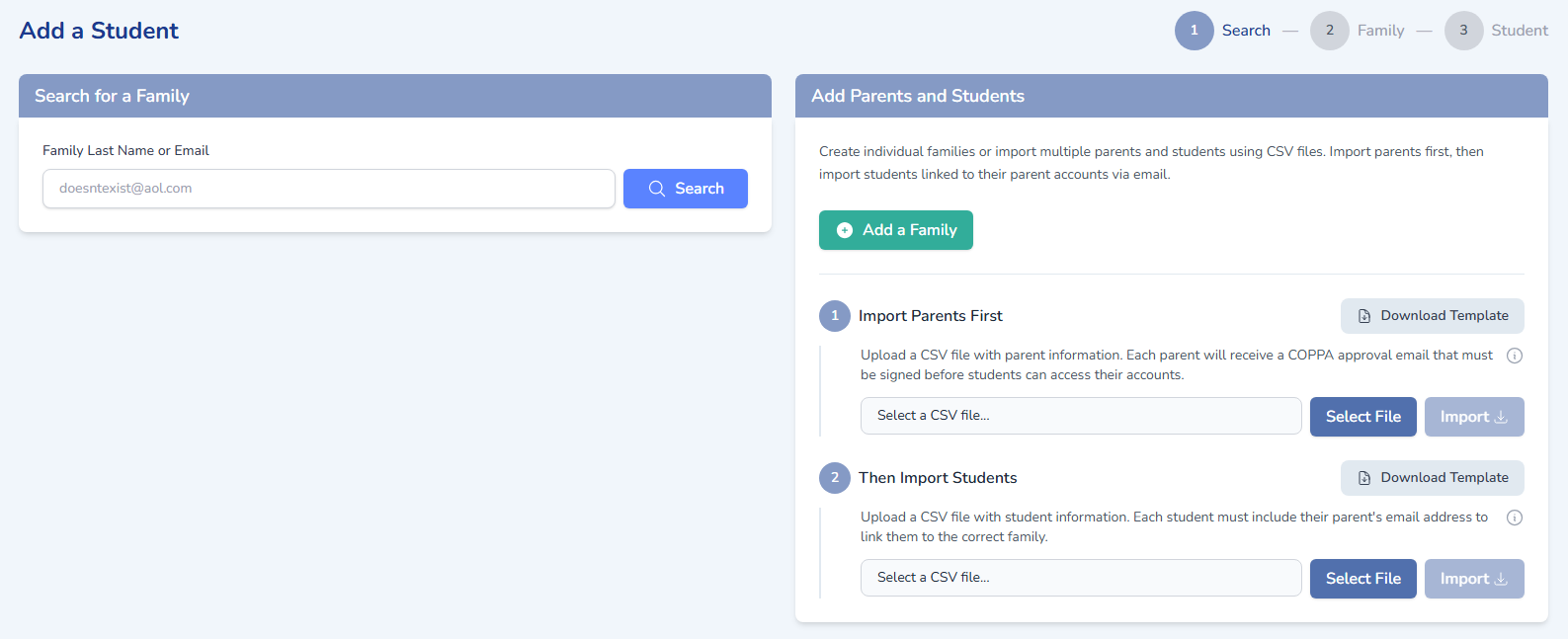
To start manually adding, click Add a Family.
Add all the required parent information. The email must be a unique username that does not exist in the Homeschool Hub. If the parent already exists in the Homeschool Hub, they should be sent the access code to connect their student.
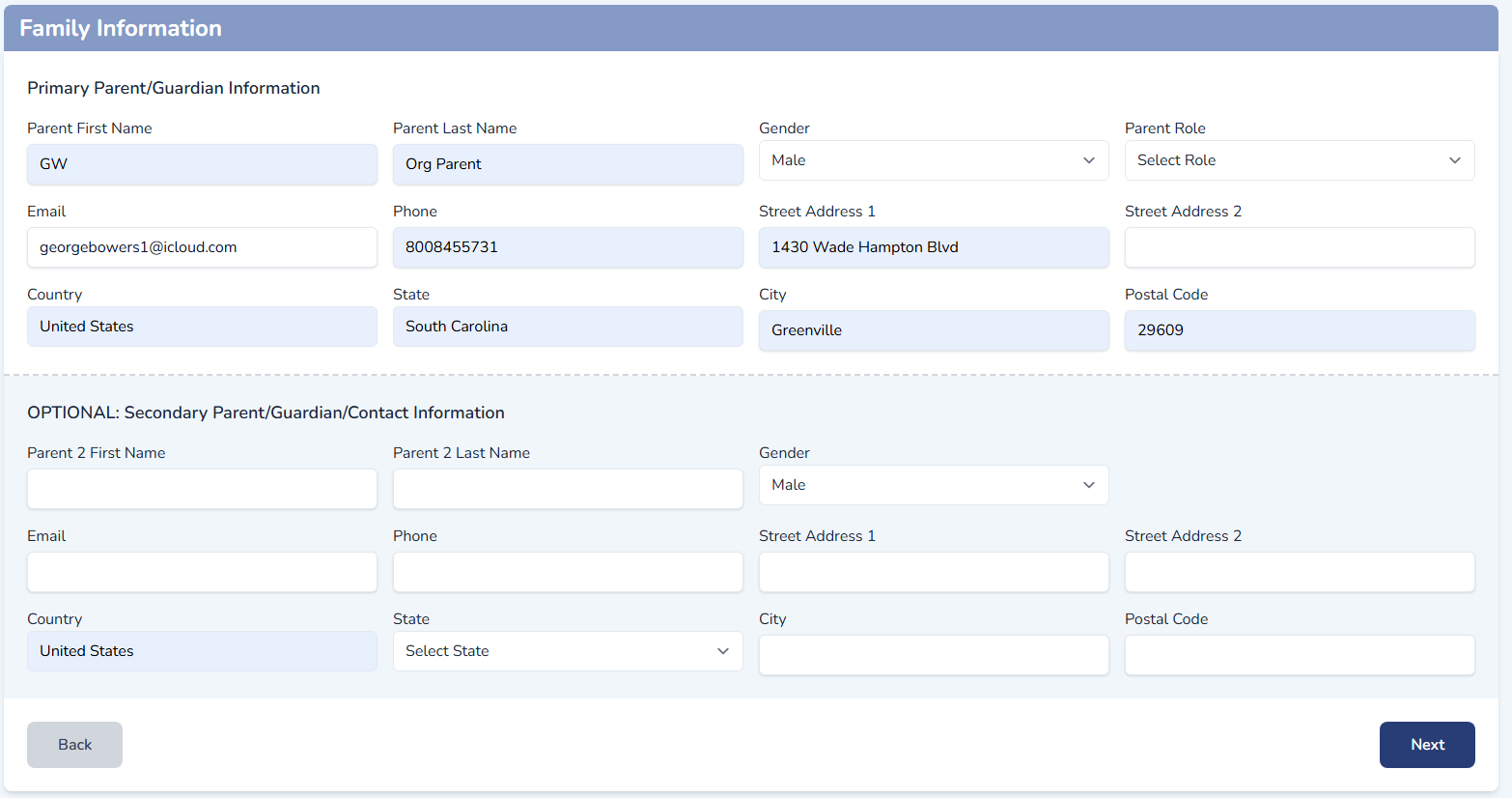
Note: One important field is the Parent Role. When the organization adds parents, they can control the access the parent has. Parents can be set to full access, no grading, or view only.
Next, add the student information.
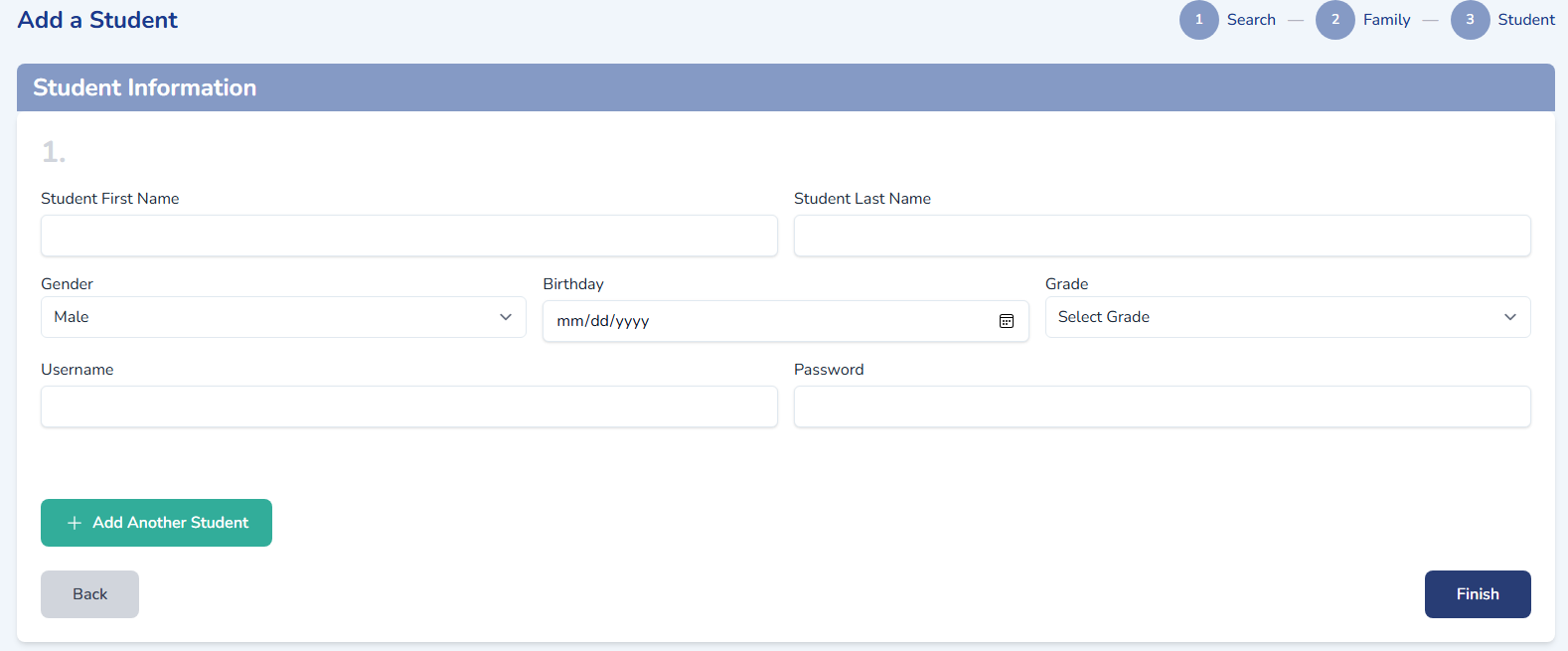
The admin can continue adding additional students or click Finish to add the family to their Class Connect account. The admin can continue managing the students from the Students page.
Parents will be sent a COPPA agreement to sign off on allowing their student(s) to access Class Connect. The status of that COPPA agreement can be seen in the Quick View of a student on the Student page.
Students Page
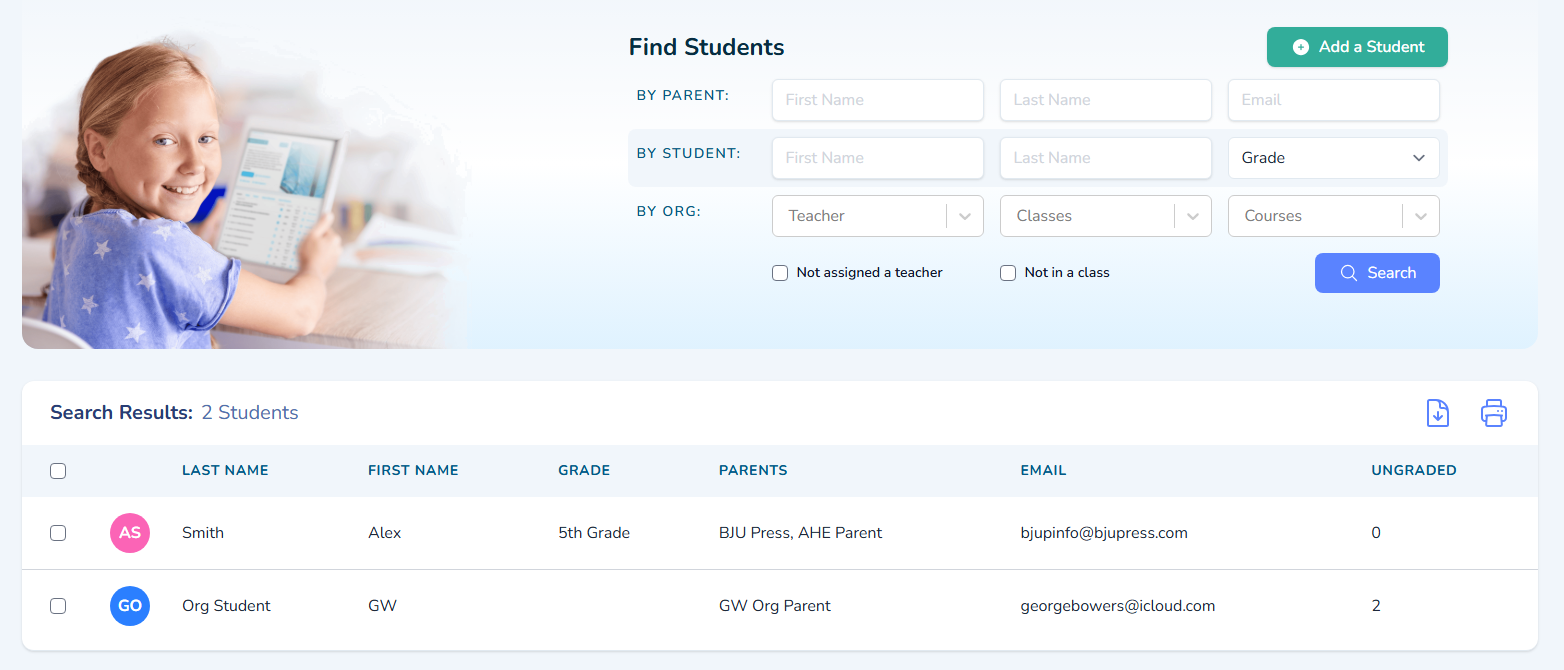
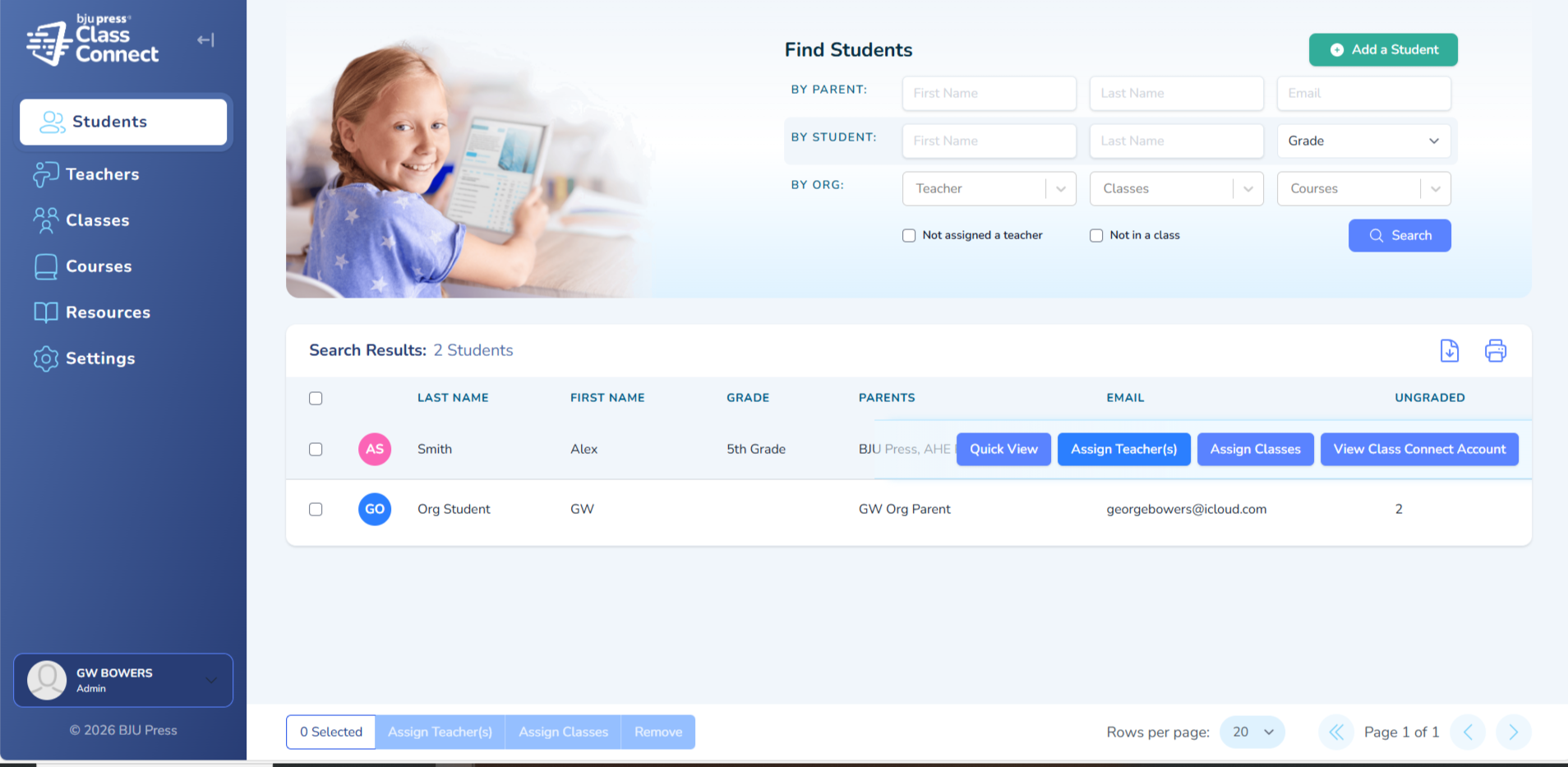
On the Students page, admins can search to find a student by searching for the parent or student or can filter by assigned teacher or class.
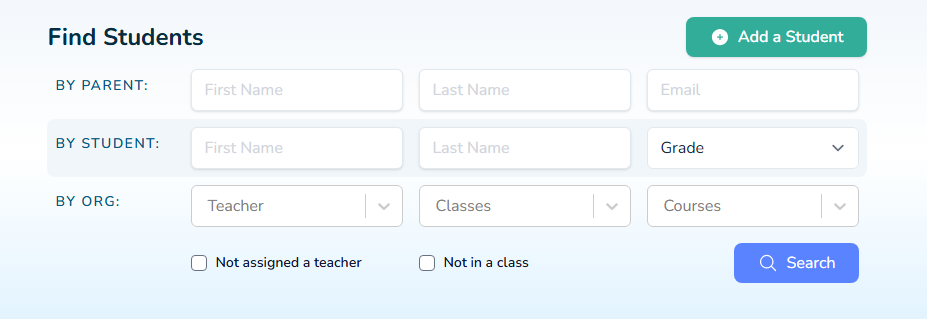
In the search results, the school admin can view the student information, assign a teacher to the student, and View the Class Connect account. If the organization has been configured to purchase courses, Assign Classes will be available.
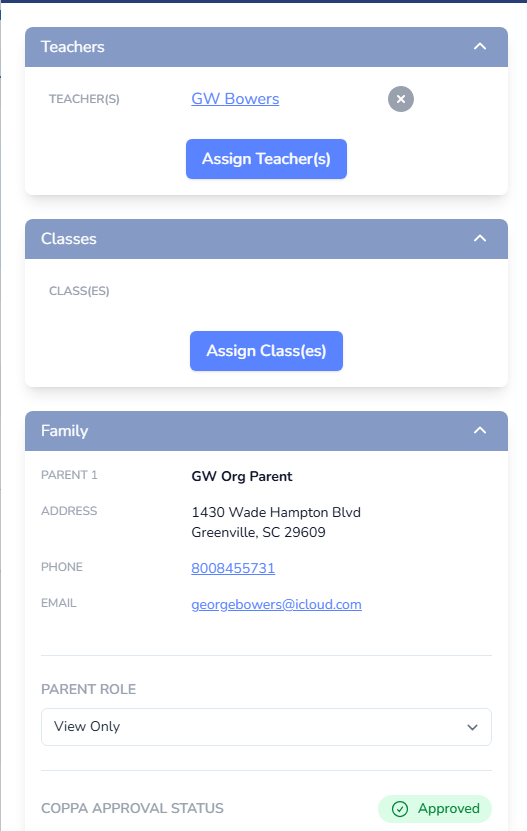
Quick View – Allows access to view the teacher and/or assign the student to a teacher, view family information, and view any assignments available to review. When managing parents and students, the admin can also set the parent role and view the COPPA Approval Status.
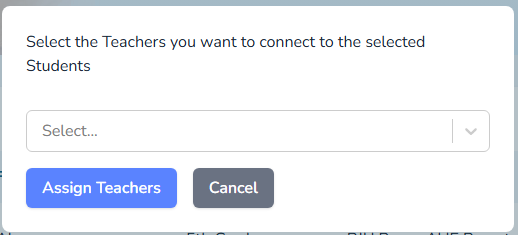
Assign Teachers – Allows the admin to assign teachers to students. Teachers will be able to access assigned students from their login.
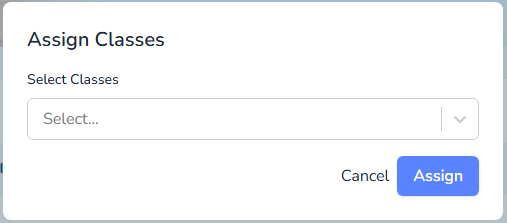
Assign Classes – Allows the admin to assign students to classes. The students will also be automatically assigned to the teacher of the class.
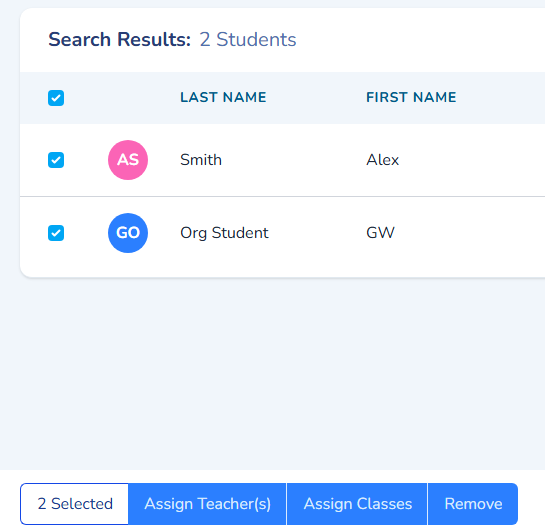
Admins can assign a teacher or class to multiple students by clicking the checkbox next to the student and using the Assign Teacher(s) or Assign Classes button below the search result to assign the teacher to multiple students.
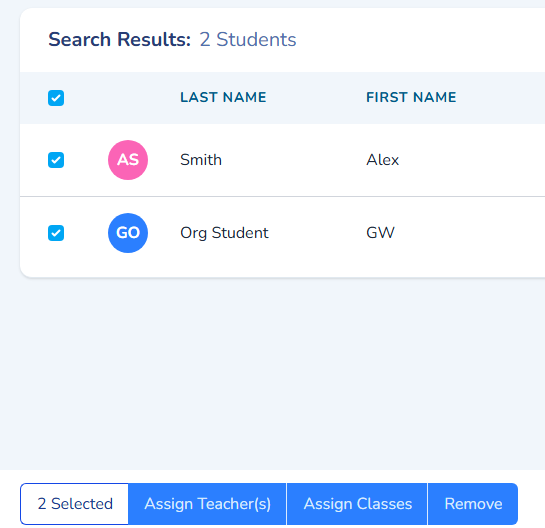
View Class Connect Account – Clicking the admin to access the student’s account. Teachers also have access to View Class Connect Account. This gives access to the courses that have been assigned to the student and allows admins and teachers to review assignments, input and review grades, use answer keys to check work, and export reports.
Unassign Teachers from Students
At any time, the admin can unassign teachers from students. Go to the Quick View of a student and click the
 next to the teacher to remove the teacher from the student.
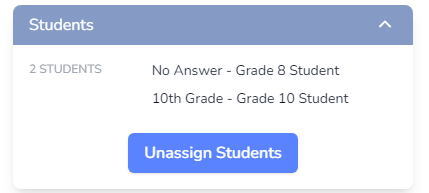
To remove all students from the teacher, go to the Teachers page, click on Quick View of the teacher, and click Unassign Students.
Remove Students from the Portal
When selecting students, the admin can remove students that may no longer be enrolled in the organization. When a student is removed, this will disconnect them from the organization where they will no longer be listed in the Students List and delete any progress from assigned courses the organization purchased. Removing the student does not delete the student from the Homeschool Hub. It only removes the link between the organization and the student’s account. Students can be re-linked at any time.